
An update has been released, and here is an overview of what was improved in Bankfeed version 31.0
Contact us
Feel free to leave your question here and we will email you the answer as soon as possible.


An update has been released, and here is an overview of what was improved in Bankfeed version 31.0
Check out the features of Bankfeed.
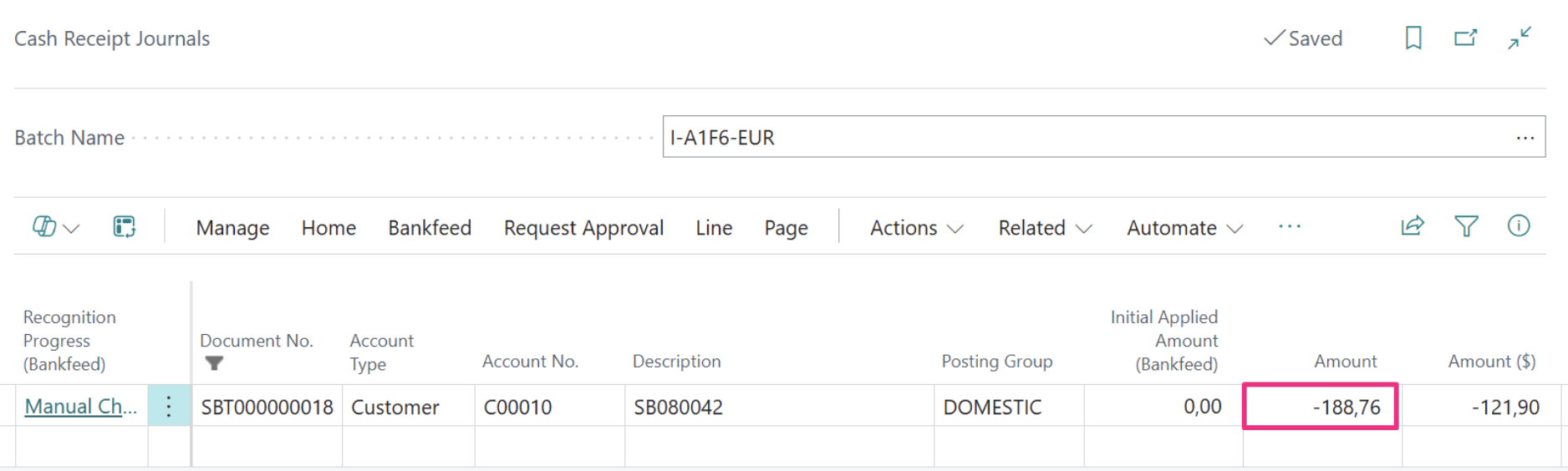
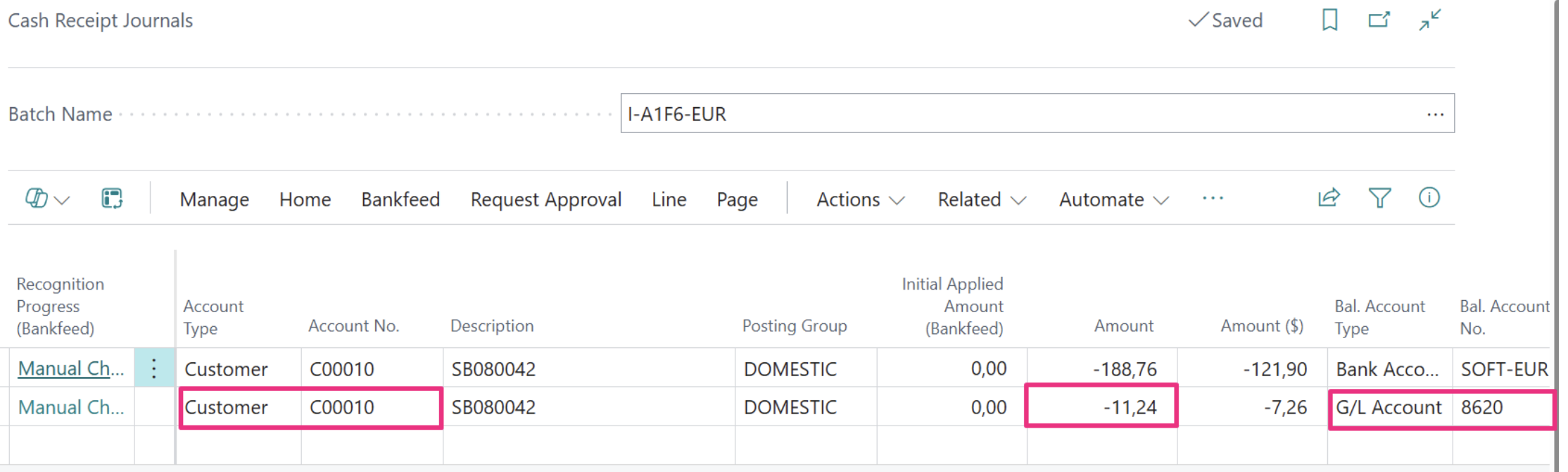
When a customer pays an invoice, but we don’t receive the full amount due to bank charges, we can now split the payment and allocate the correct amounts to the appropriate accounts.
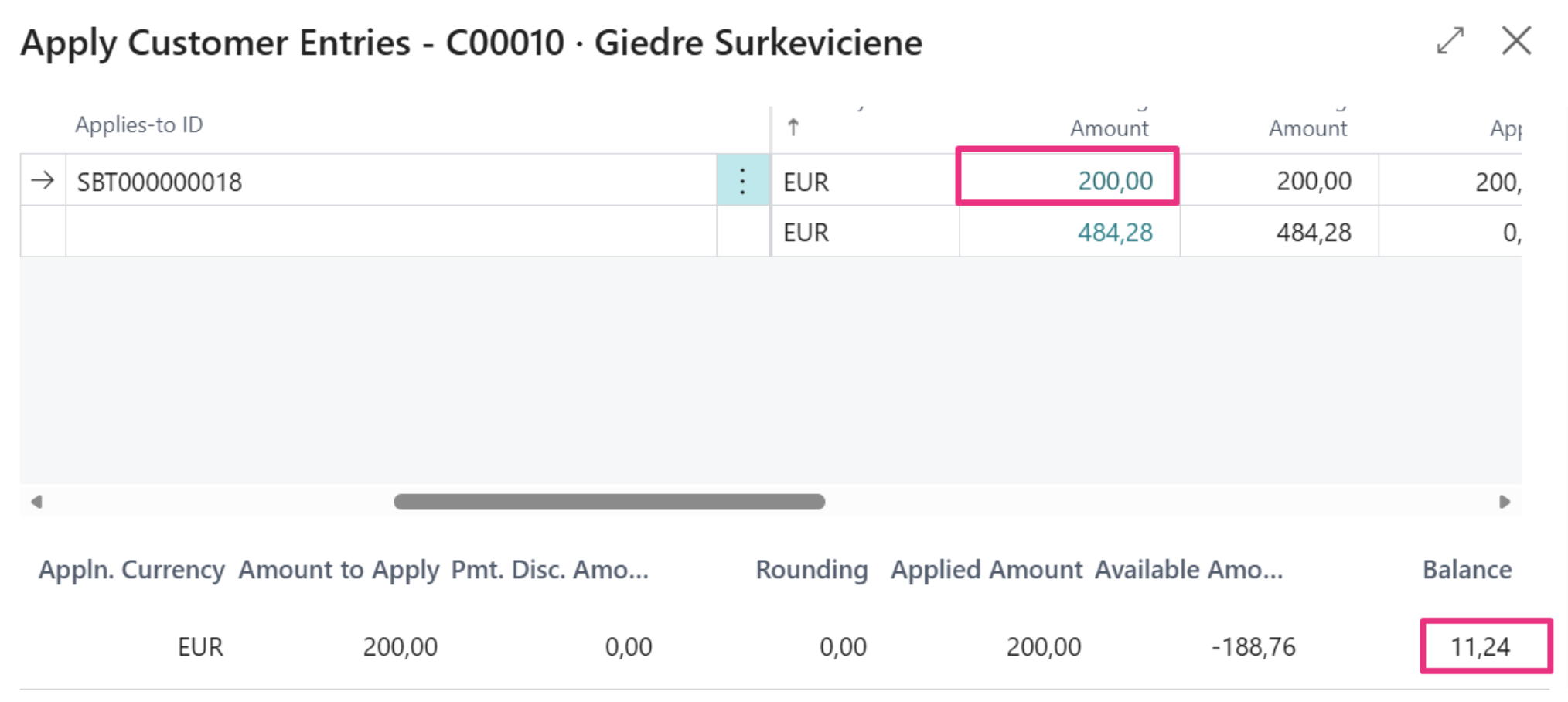
In the Apply entries we see that the full amount is 200 and after application the balance is 11,24.
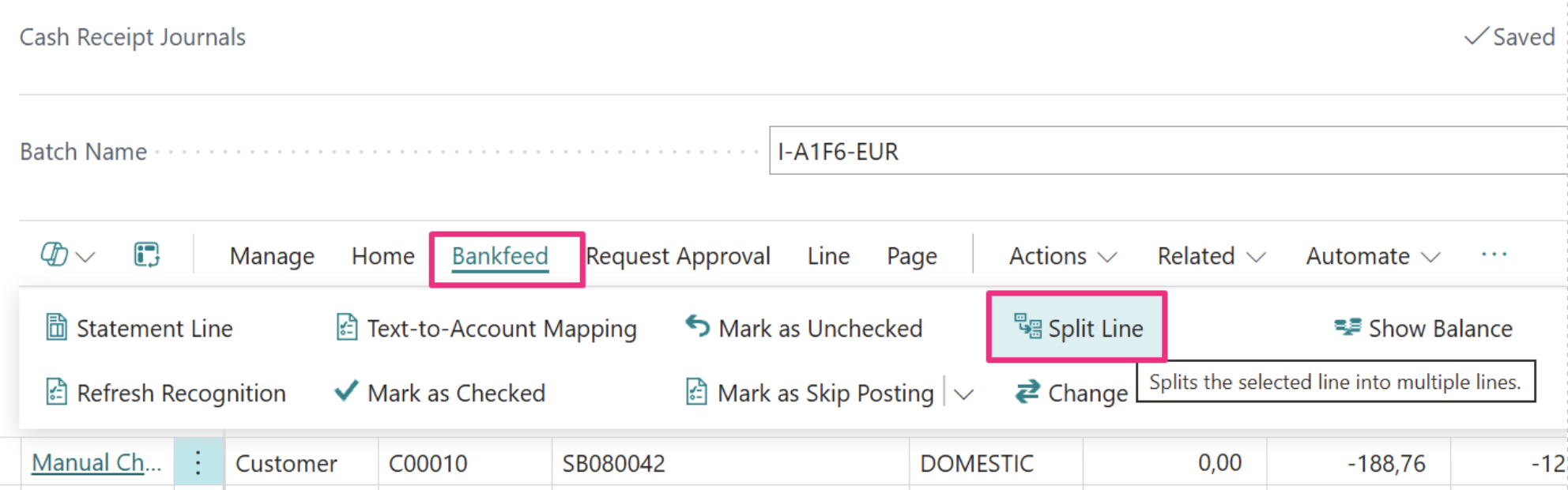
Run the function Bankfeed > Split Line.
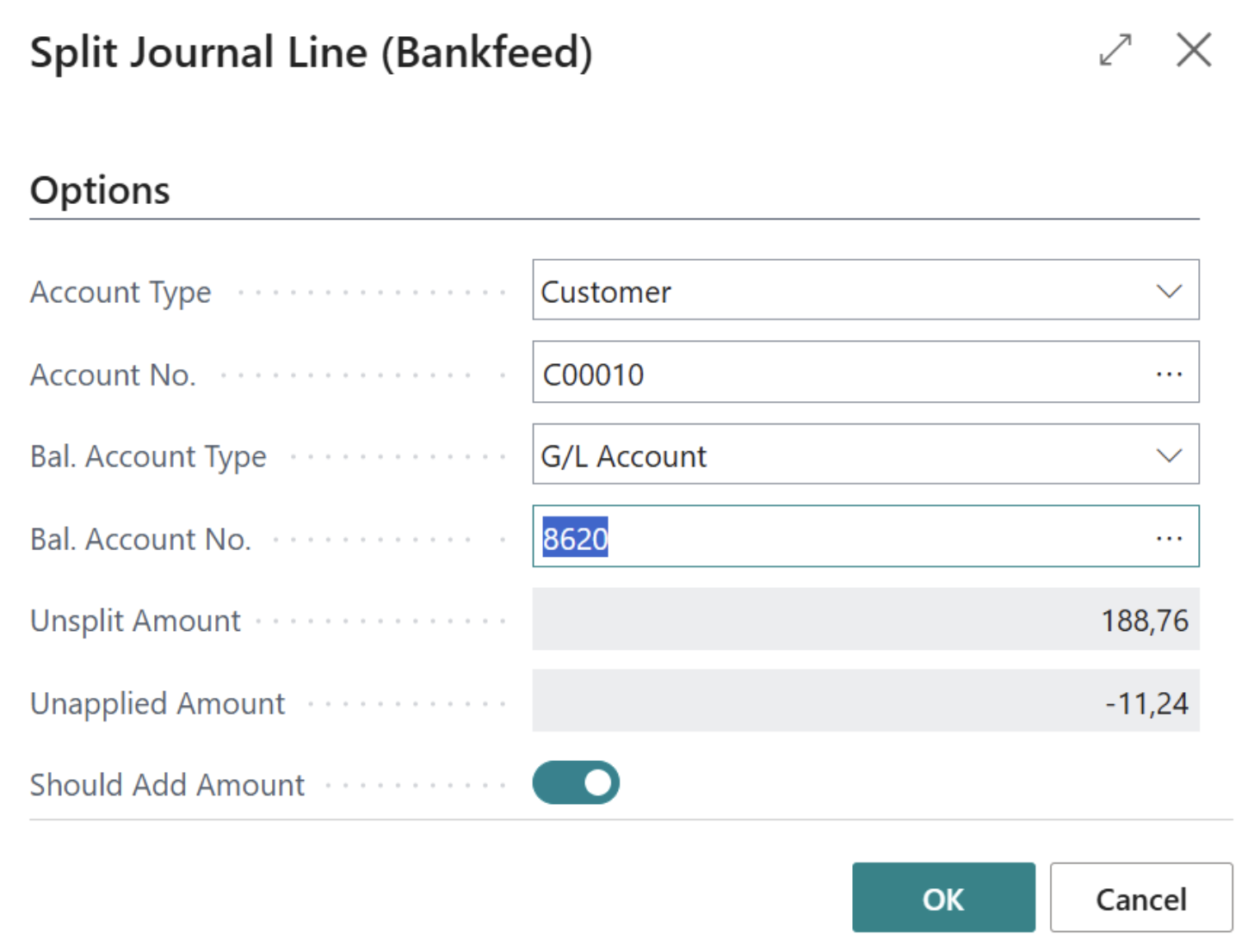
The lines will be split into two lines, according to our selections on the function request page.
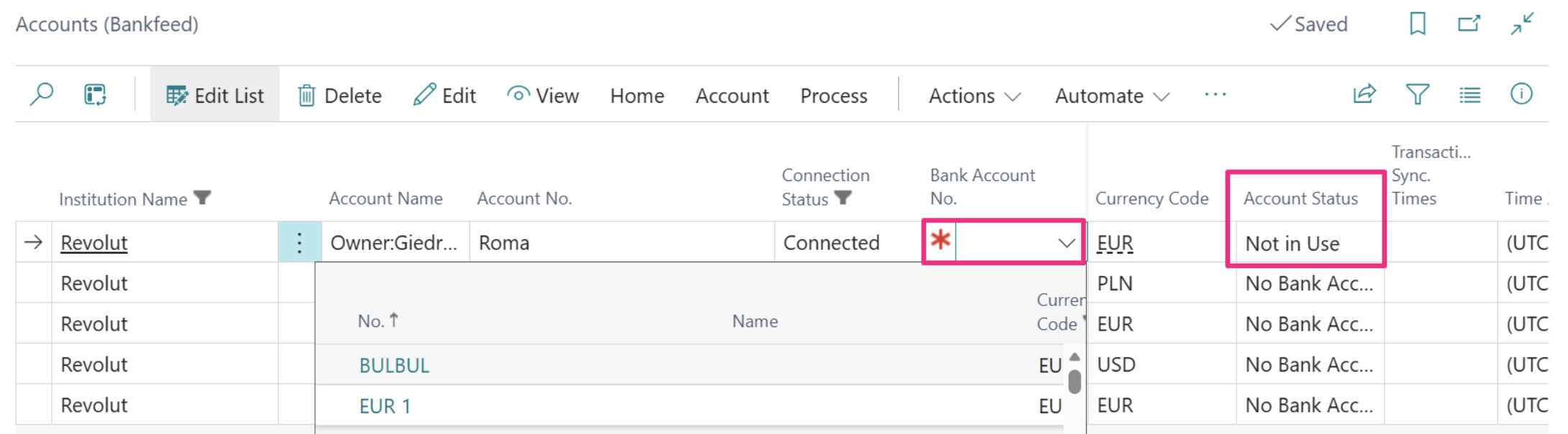
In the past, when your Account Status changed to “Not in Use,” updating it to “Ready to Use” could have been complicated. You needed to be aware of the specific order of steps required. We have now simplified this process.
You can link your Bank Account No., and the Account Status will update automatically.
Alternatively, if you change the Account Status to “Ready to Use”, the Bank Account No. will be automatically filled in if it has been previously entered.
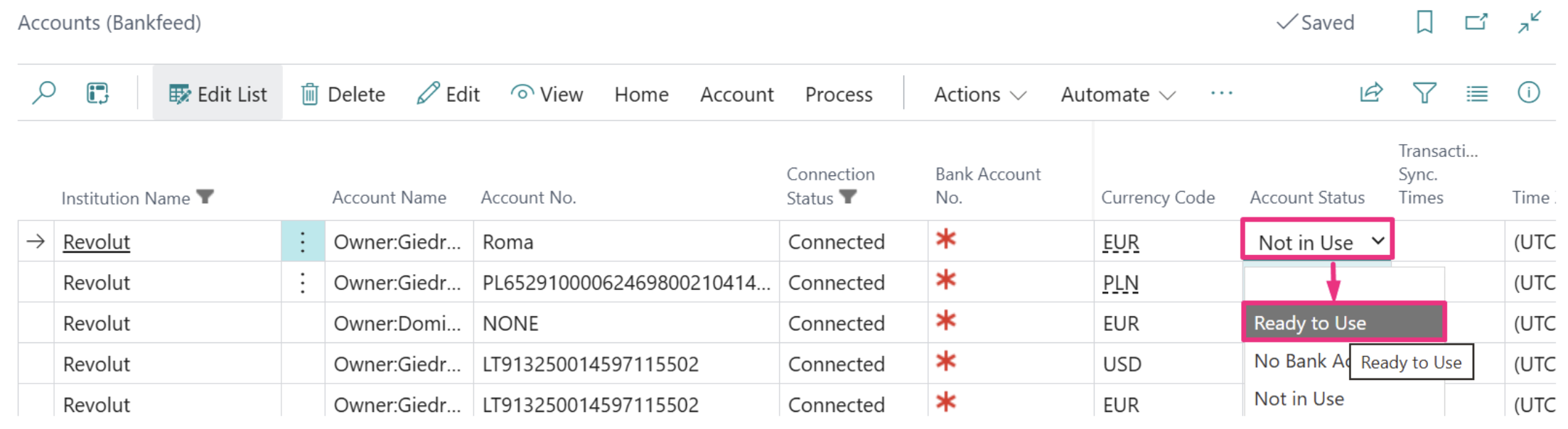
Overall, the process of transitioning between all Account Statuses has become much easier.
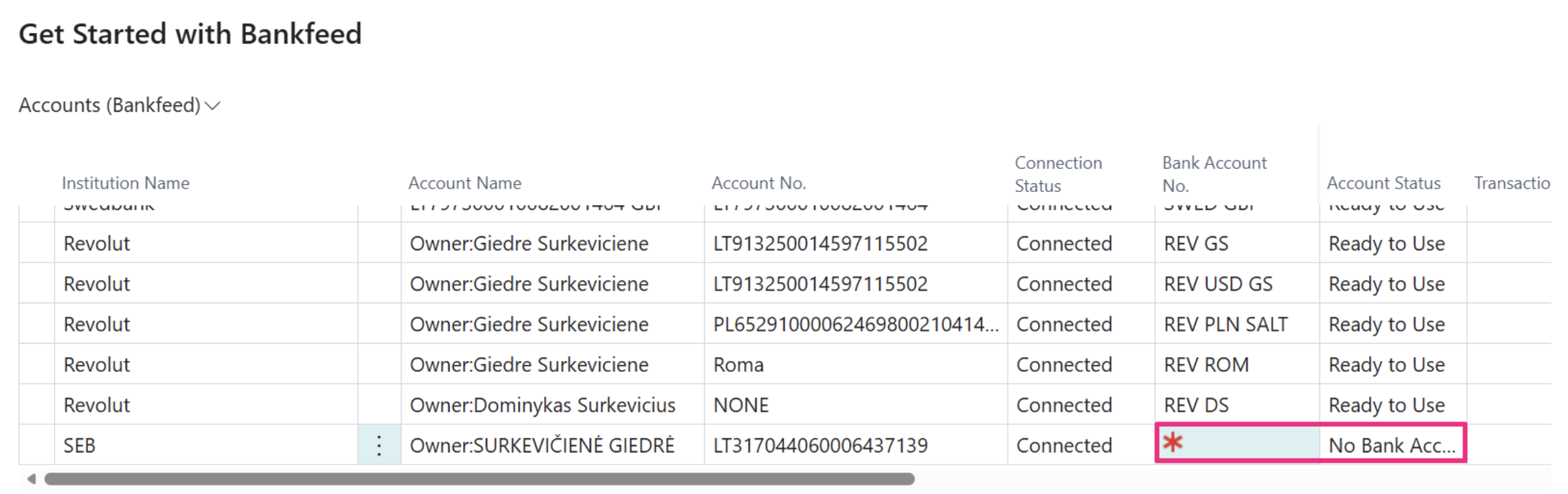
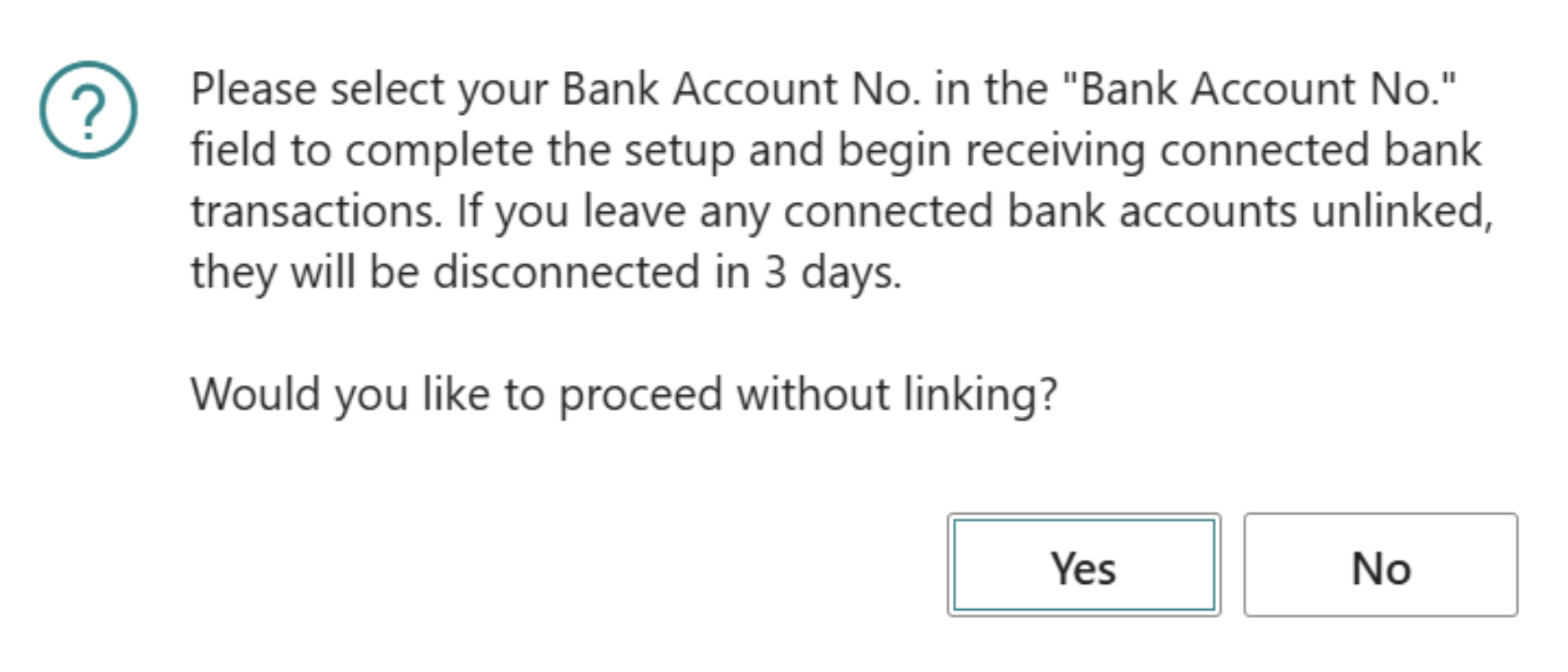
Many Bankfeed users encounter issues due to a missed step: linking their connected bank accounts to the corresponding Business Central Bank Account cards.
To address this, during the final step of connecting a bank account, you will be prompted to confirm whether you want to close the window without linking the accounts.
Make sure to complete this step to ensure proper account linkage.
For the cases when automated payment initiation from Business Central is not available, we have introduced a new SEPA file export functionality that includes the following features:
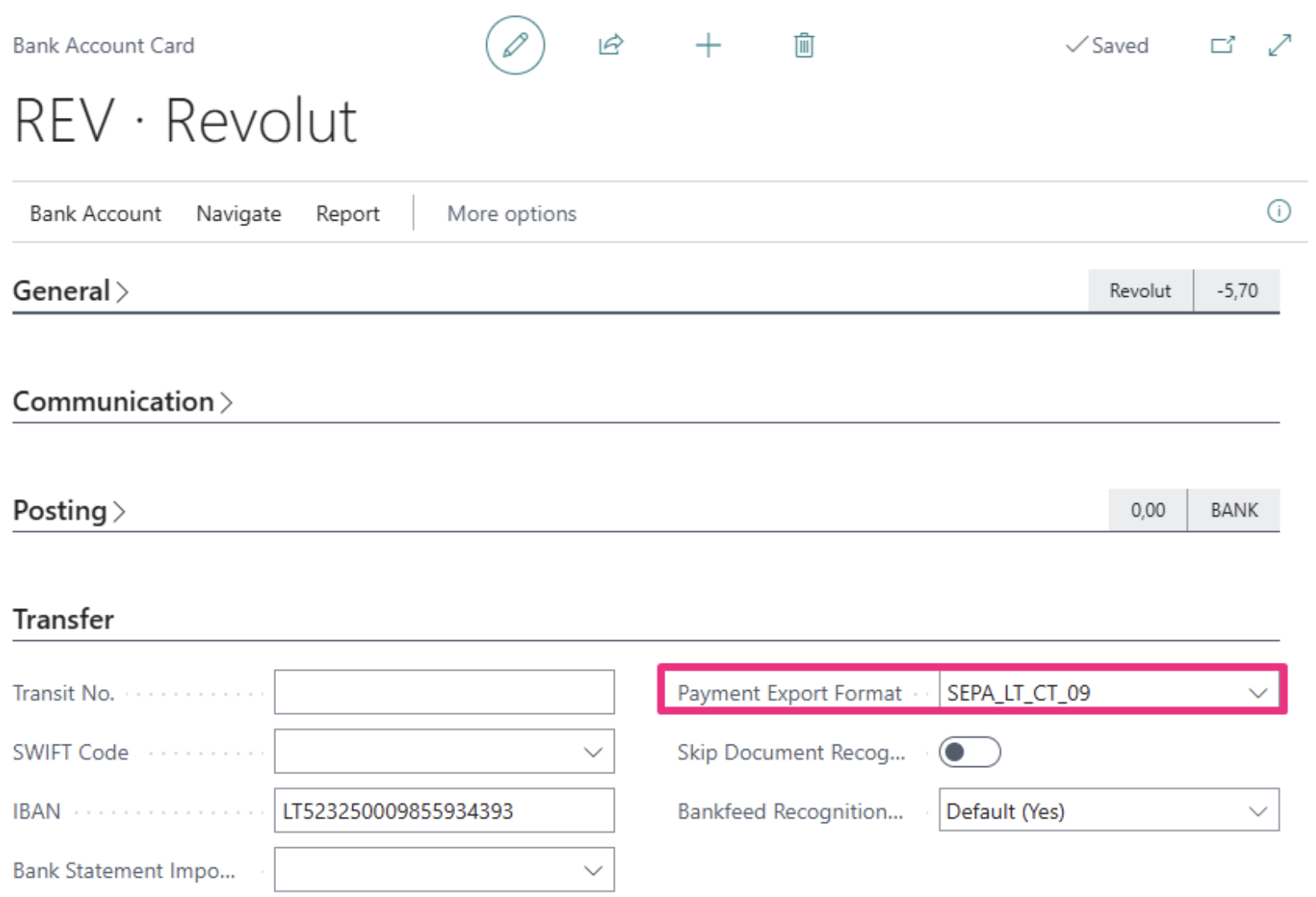
This functionality aims to enhance usability and ensure compliance with SEPA and international payment standards.
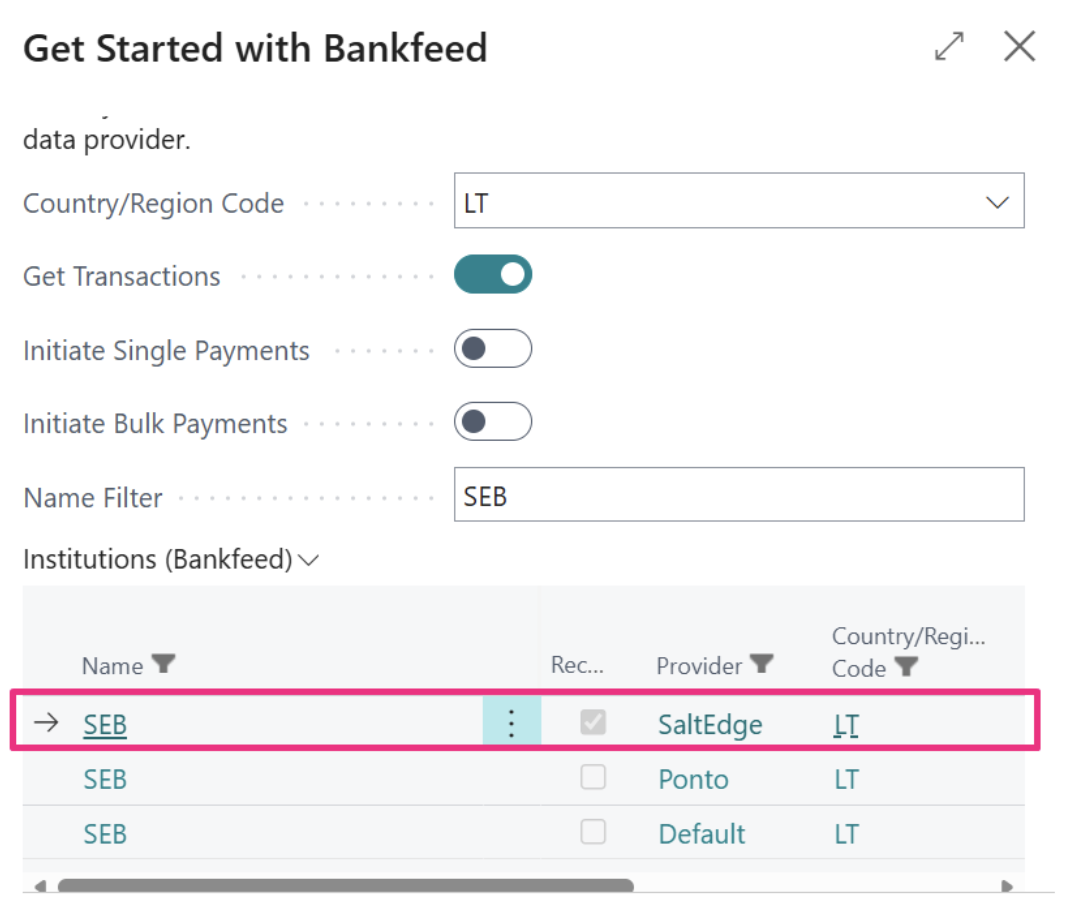
When connecting your bank account, you may notice multiple suggestions for the same bank institution in the list. To simplify your selection, we have introduced a new checkmark labelled “Recommended” next to the institutions. This feature will help you easily identify and choose the correct provider.
This new feature will be especially beneficial for consultants and partners who demo Bankfeed to their customers. It provides a convenient way to ensure that all the necessary setups are completed, and that examples are well-prepared, all in one place. It prevents the need to open multiple pages in Business Central to verify that everything is in order.
You can find the new Setup/Demo Checklist (Bankfeed) under Bankfeed Links > Setup/Demo Check List (Bankfeed).
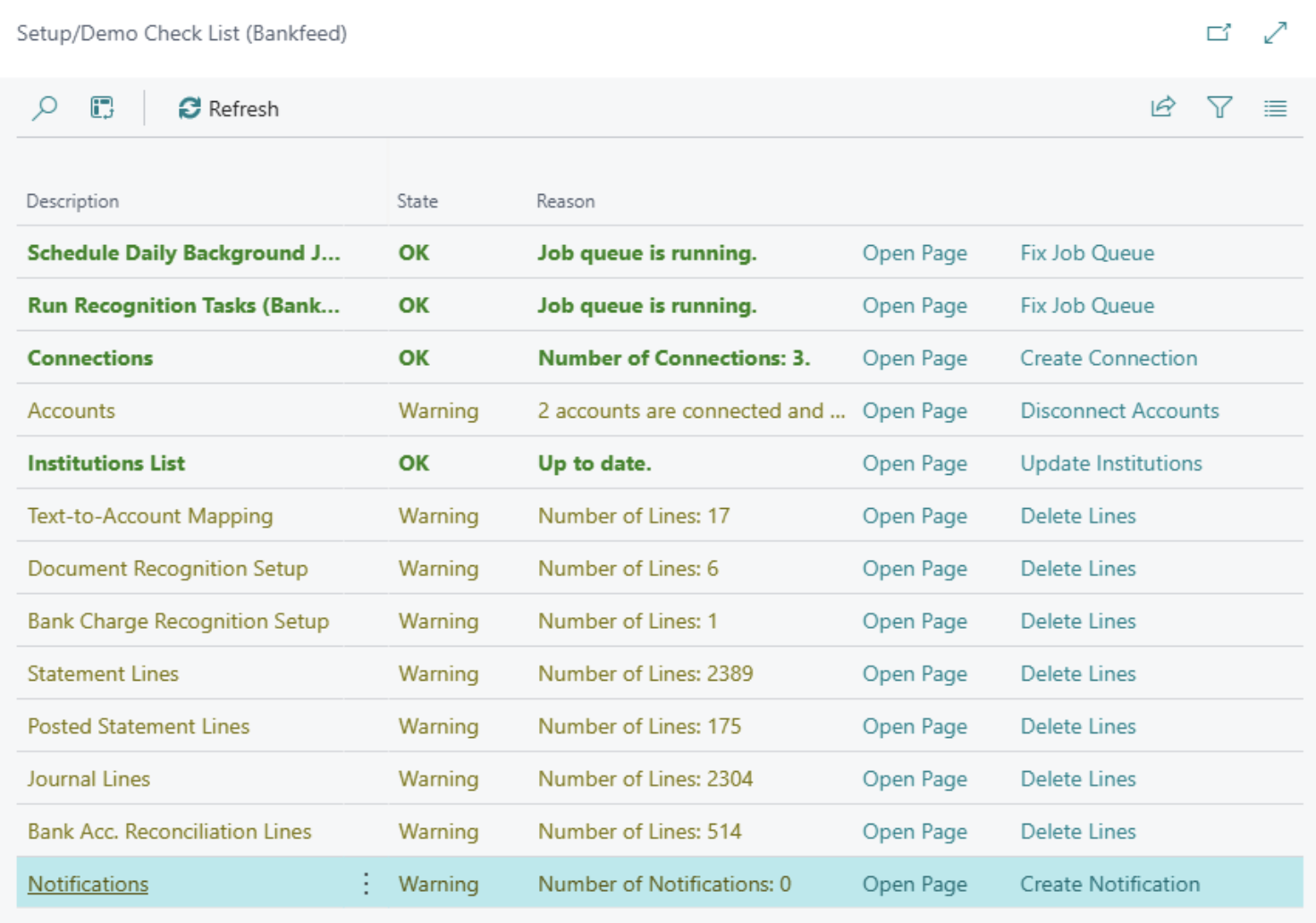
On this page, you can view the number of lines on specific pages and manage them – create, delete, or perform other actions – directly from this checklist.
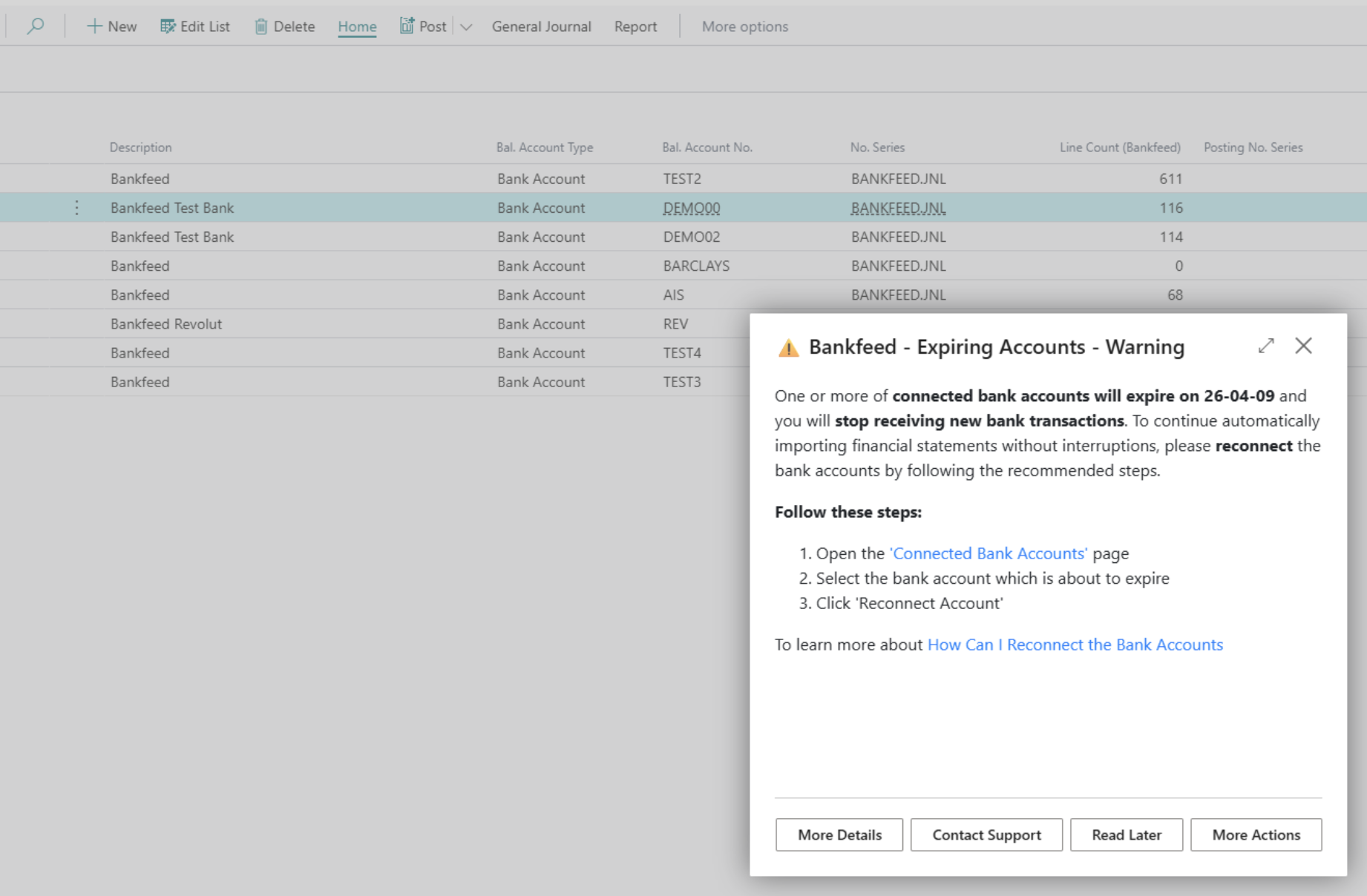
Notifications have been available for some time, but they can be easy to overlook. To make sure important information doesn’t get missed, Notifications are now displayed in more locations, with the most important ones appearing as pop-ups when you open the journal.
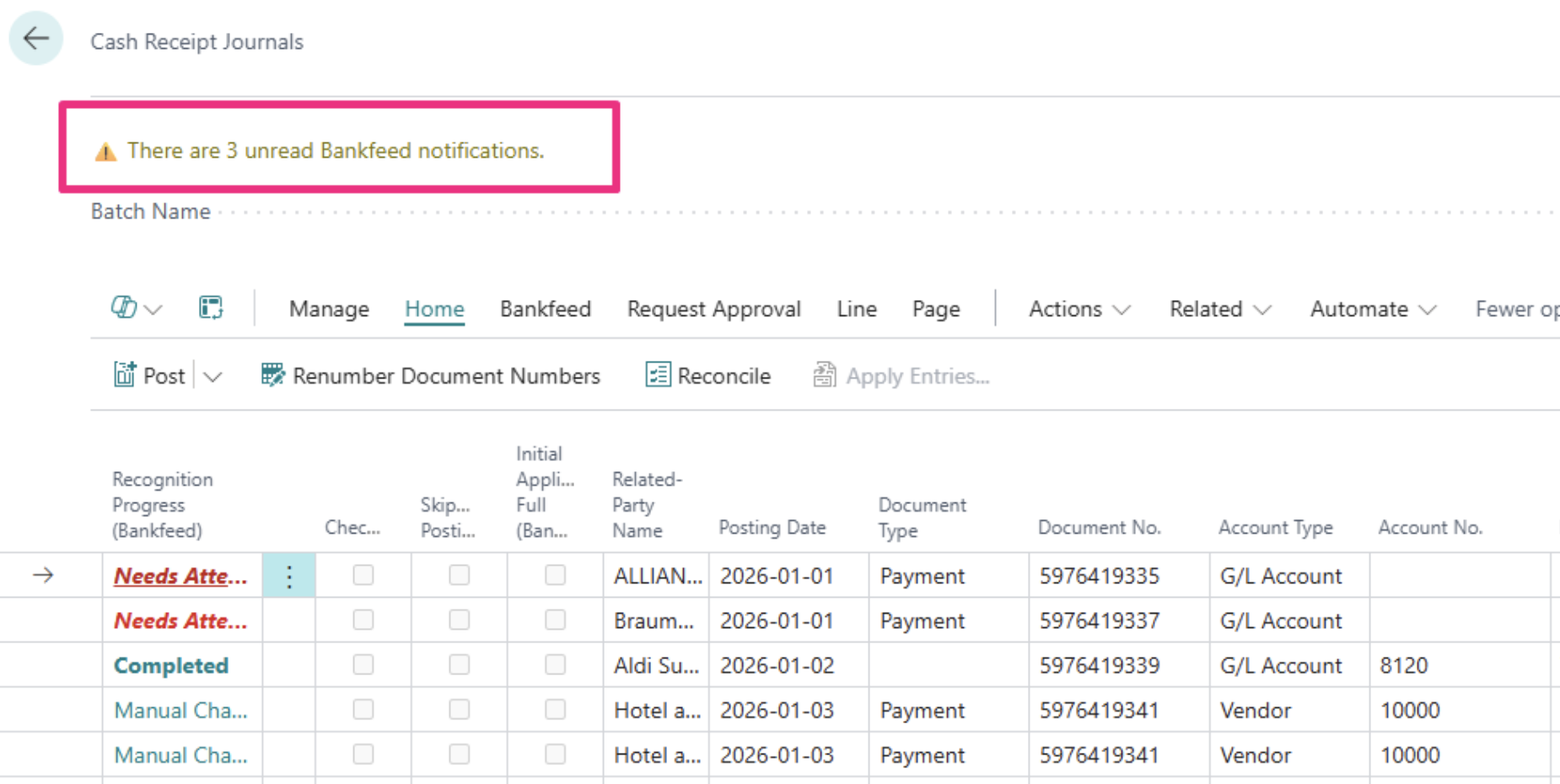
Within the journal, you’ll also see the count of important unread notifications you have.
TRY FOR FREE

HURRAY!
Feel free to leave your question here and we will email you the answer as soon as possible.
Hello, I found this Dynamics 365 Business Central add-on that would save me tons of time by automatically importing bank statements and matching payments with invoices. It has certain technical requirements like an up-to-date Business Central version and banks that comply with the PSD2 open banking protocol. Could you please check the requirements and let me know if we are able to use the Bankfeed app? The requirements are here: www.bankfeed.com/faq/, or you may contact the add-on’s developers at [email protected].
Bankfeed works as an add-on for Microsoft Dynamics 365 Business Central. Therefore the usage of this ERP system is necessary. The solution works best with the three latest versions of Business Central. Before installing Bankfeed, we recommend checking if the following conditions are met: 1. Open banking API (PSD2) is not occupied. If you use online payment provider services (Wordline, Wordpay, etc.), they might be connected through an open banking API. Therefore, Bankfeed will not be able to connect to this API as it is already occupied. In these situations, we can connect Bankfeed through the bank’s direct API, known as a Gateway. However, it usually requires additional banking fees and additional implementation hours. 2. Banks provide the information required for recognition and reconciliation. Even though open banking is regulated using the PSD2 protocol and is mandatory for all EU banks, the banks treat these requirements differently. The amount of information provided through the APIs and its quality can differ depending on the bank. This can lead to a situation where Bankfeed will not be able to properly identify customers/vendors or documents because of the lack of data. Here is a list of mandatory bank fields needed to enable Bankfeed’s payment recognition and reconciliation. Please check HERE if the banks you are using provide the information from these fields:
Enter your email, and you will immediately receive:
Enter your email, and you will immediately receive:
Enter your information, and you will be contacted regarding a pricing offer that suits your business needs.