
An update has been released, and here is an overview of what was improved in Bankfeed version 29.0
Contact us
Feel free to leave your question here and we will email you the answer as soon as possible.


An update has been released, and here is an overview of what was improved in Bankfeed version 29.0
Check out the features of Bankfeed.
The new AI (artificial intelligence) Bankfeed recognizer is now available. With this release, AI-based recognition and the existing internal Bankfeed recognizers work together to improve bank transaction recognition’s quality and accuracy.
No additional setup is required – the new recognition process starts working automatically after the Bankfeed update. If needed, AI recognition can be disabled.
As AI and internal recognizers may return different suggestions for the same transaction, Bankfeed now uses an orchestration process. It evaluates recognition history and automatically selects the most suitable result, bringing the recognition accuracy as close as possible to 100%.
Recognition results and proposals can be reviewed in the FactBoxes:
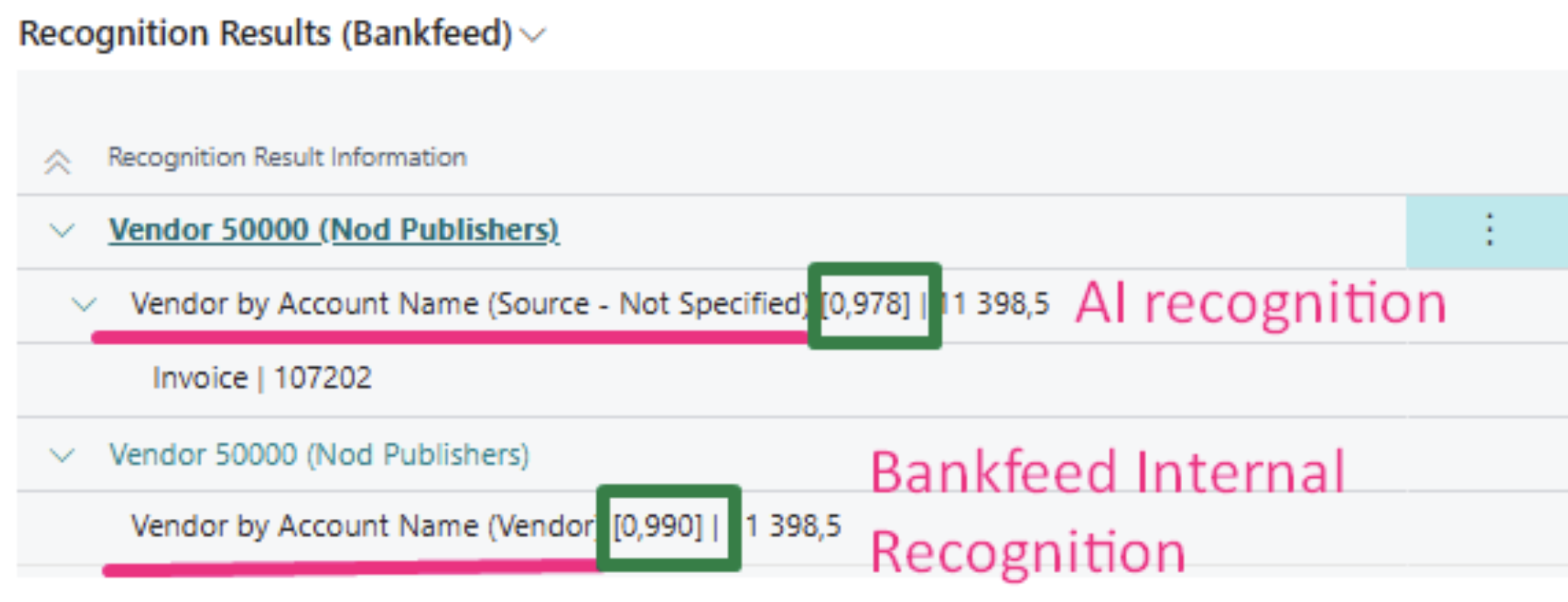
The final recognition result will be assigned to the journal line according to the result’s confidence score, or the orchestration process will decide which result is the best based on the evaluated historical postings.
All results that have texts “Similarity” or “Source – Not Specified” are AI recognition results.
If you do not like the assigned recognition result, you can always accept another recognition result from the Factbox by pressing on the three dots and “Accept”:
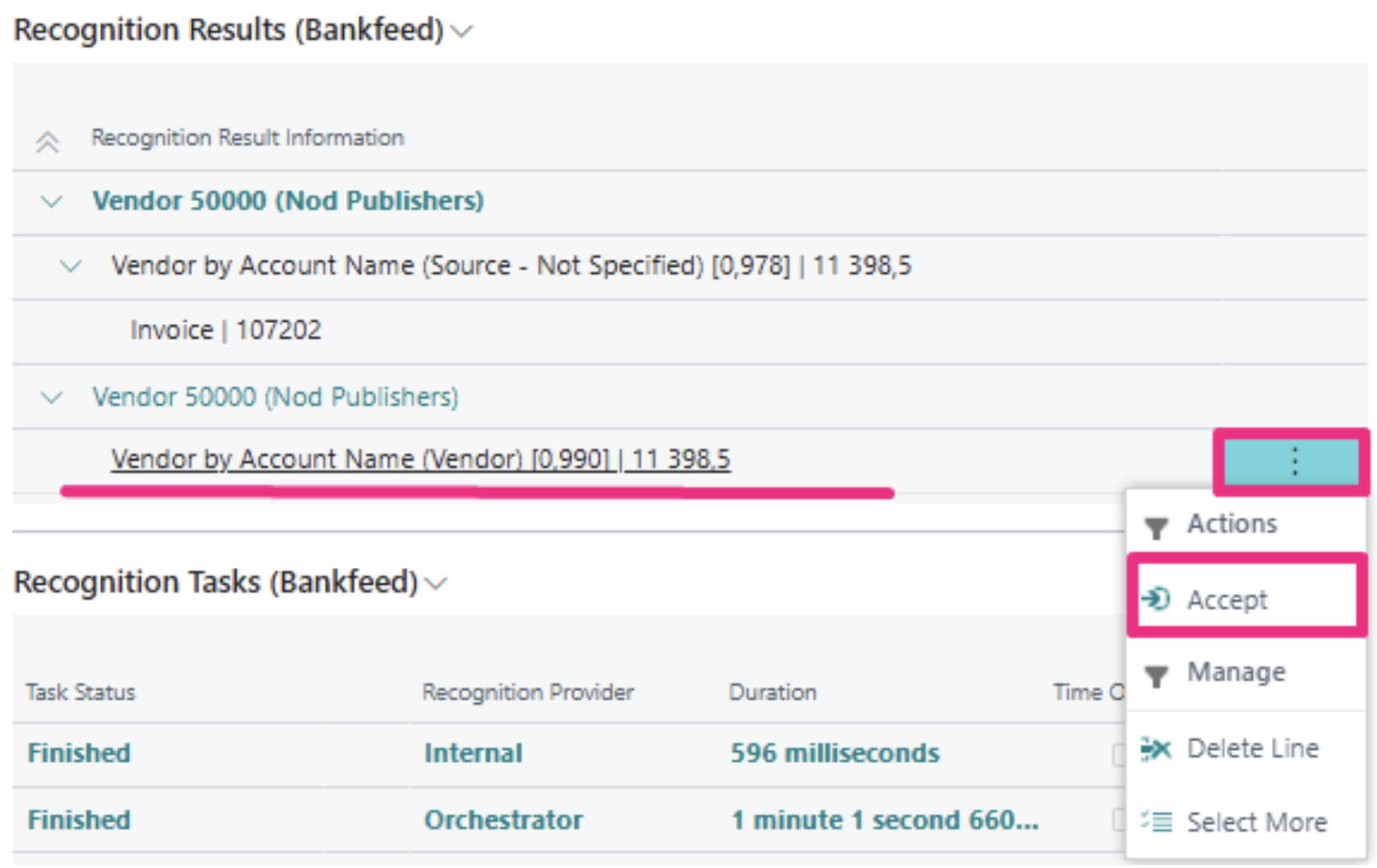
Here you can see whether all Bankfeed recognizers have finished recognizing or if they’re still running. If the recognition is still running, wait for the final results and then check the results in the lines.
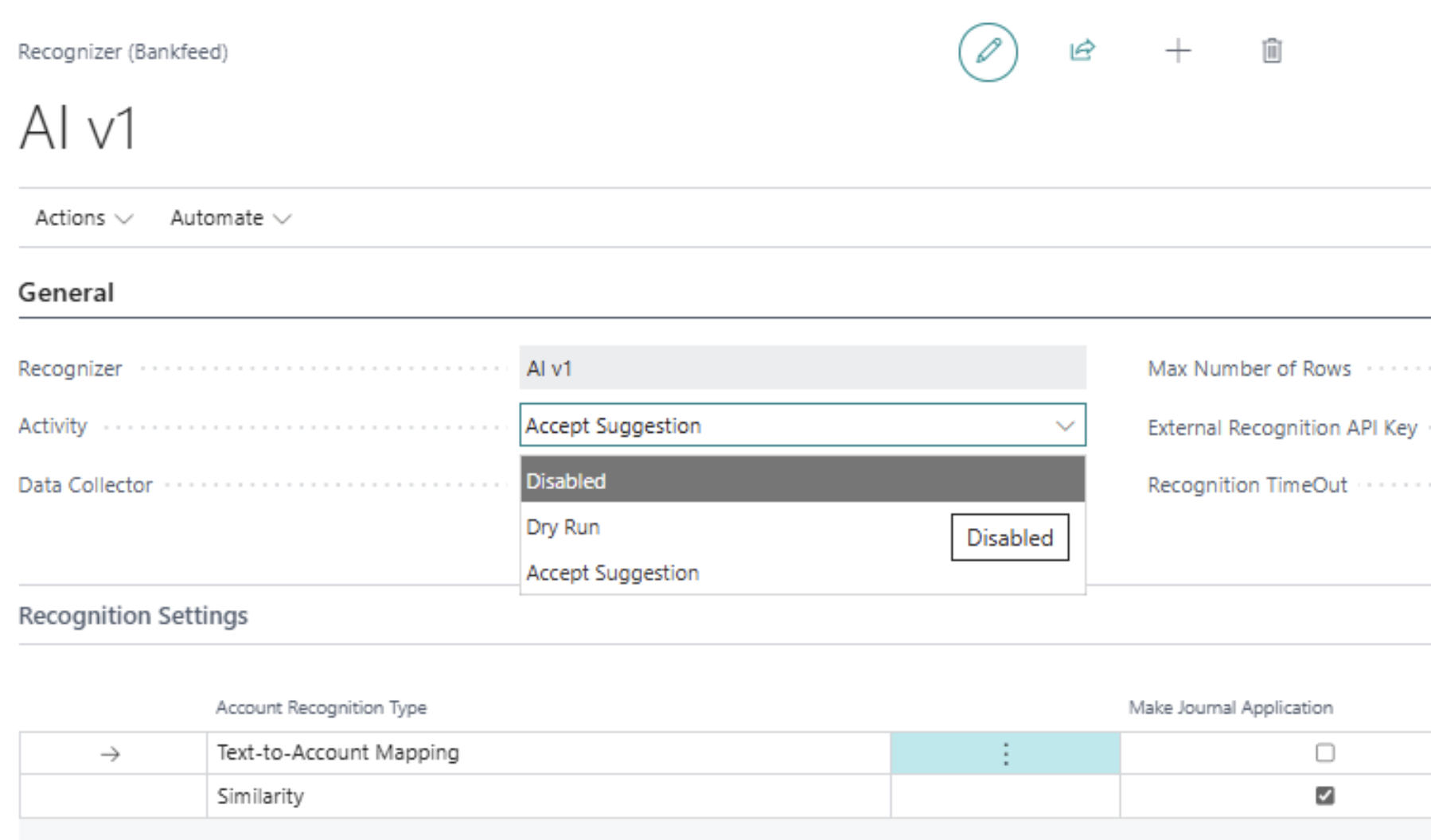
If you do not prefer to use AI recognition, you can turn it off and use only internal Bankfeed recognition.
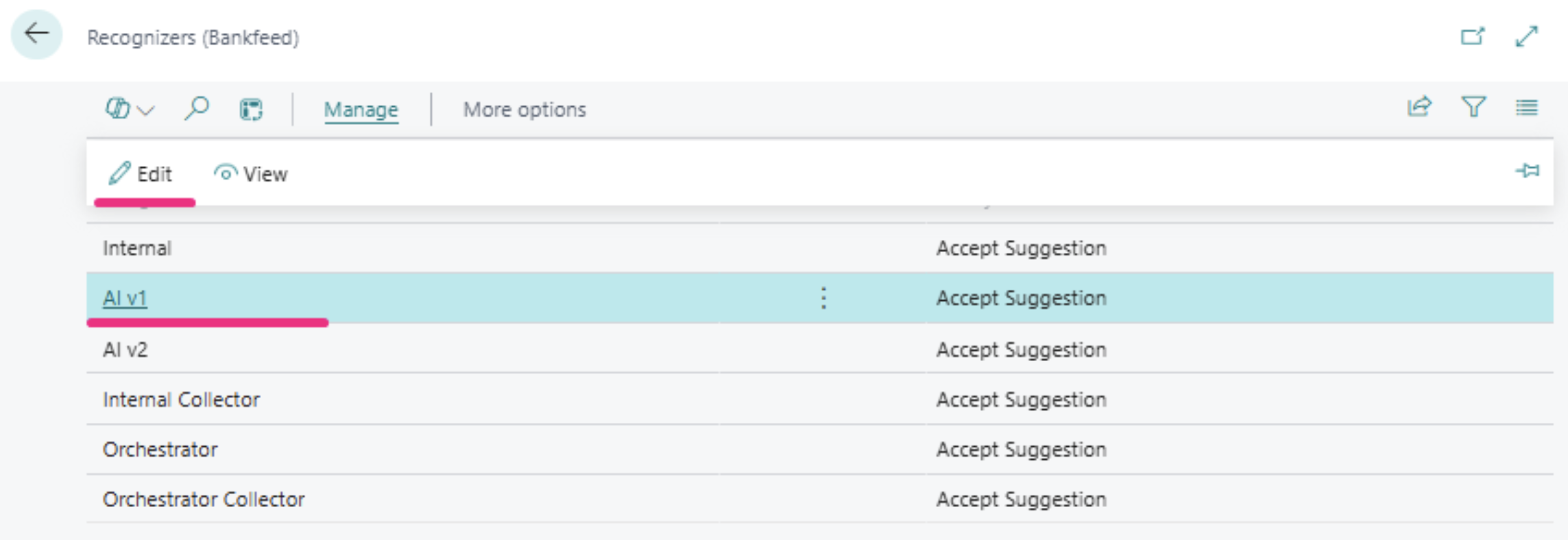
To turn off one of the recognizers, go to Links > Recognizers (Bankfeed) and select “Dry Run” or “Disable” for the recognizer.
If you run into any issues or have questions about the transaction recognition, contact the Bankfeed support team at [email protected] for more information.
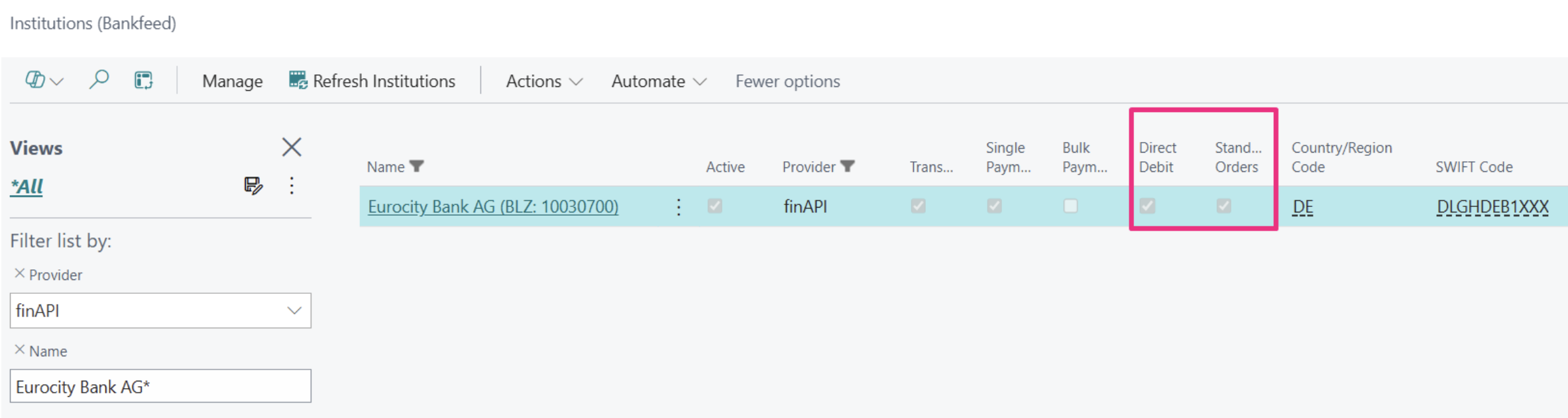
By enabling a new API provider, FIN API, Bankfeed users – especially in Germany and Austria – can now use additional payment services:
To check whether your bank supports these services, open “Institutions (Bankfeed)”.
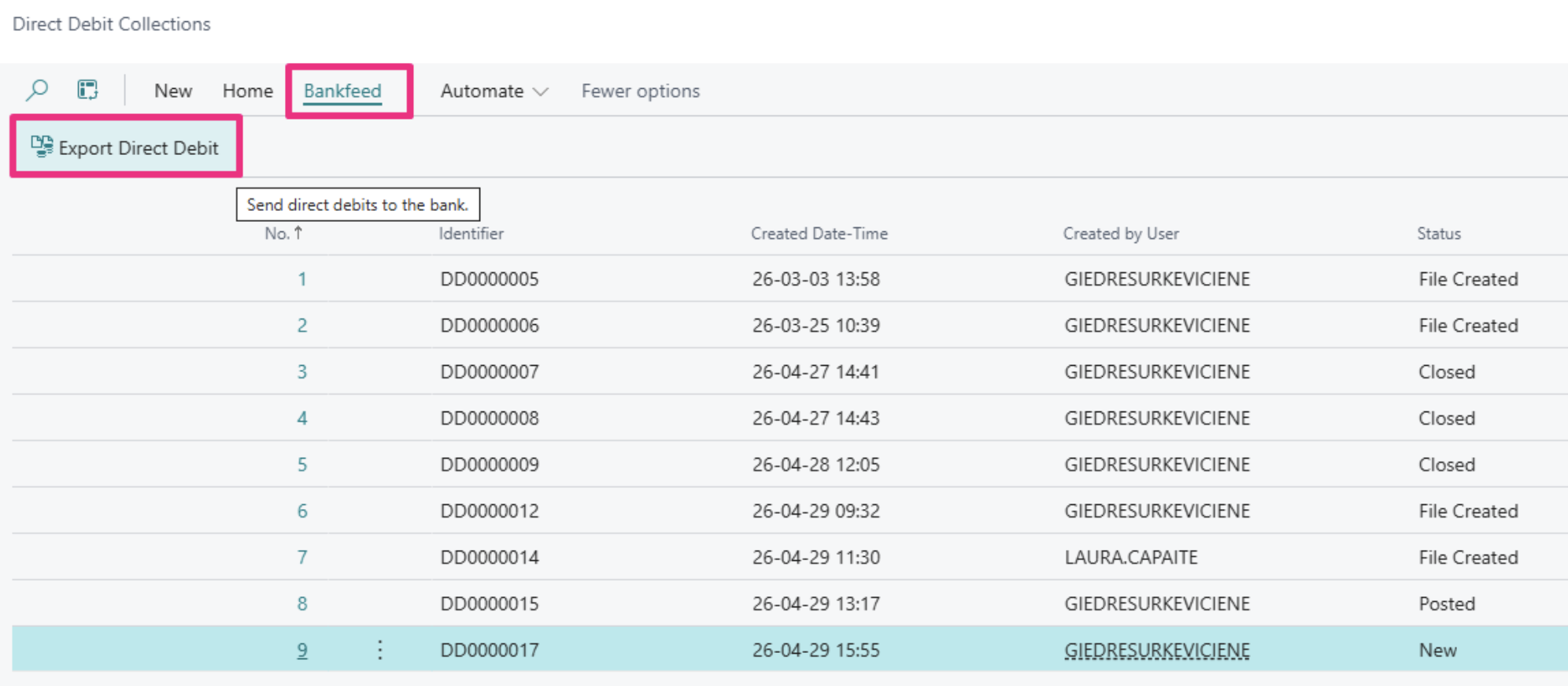
Direct Debit payments work using the standard Business Central functionality. Additionally, Bankfeed introduces the “Export Direct Debit” function.
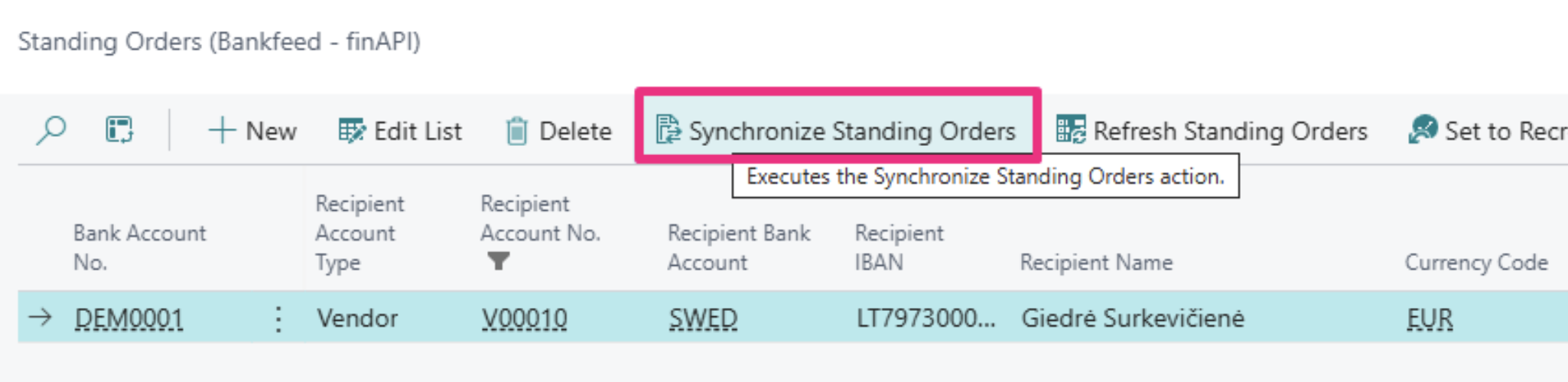
Standing Orders introduce a new way to manage recurring future payments. To use this functionality:
1) Search for “Standing Orders”
2) Open “Standing Orders (Bankfeed – finAPI)”

3) Create a new record using “New”
4) Fill in the payment information
5) Run “Synchronize Standing Orders”
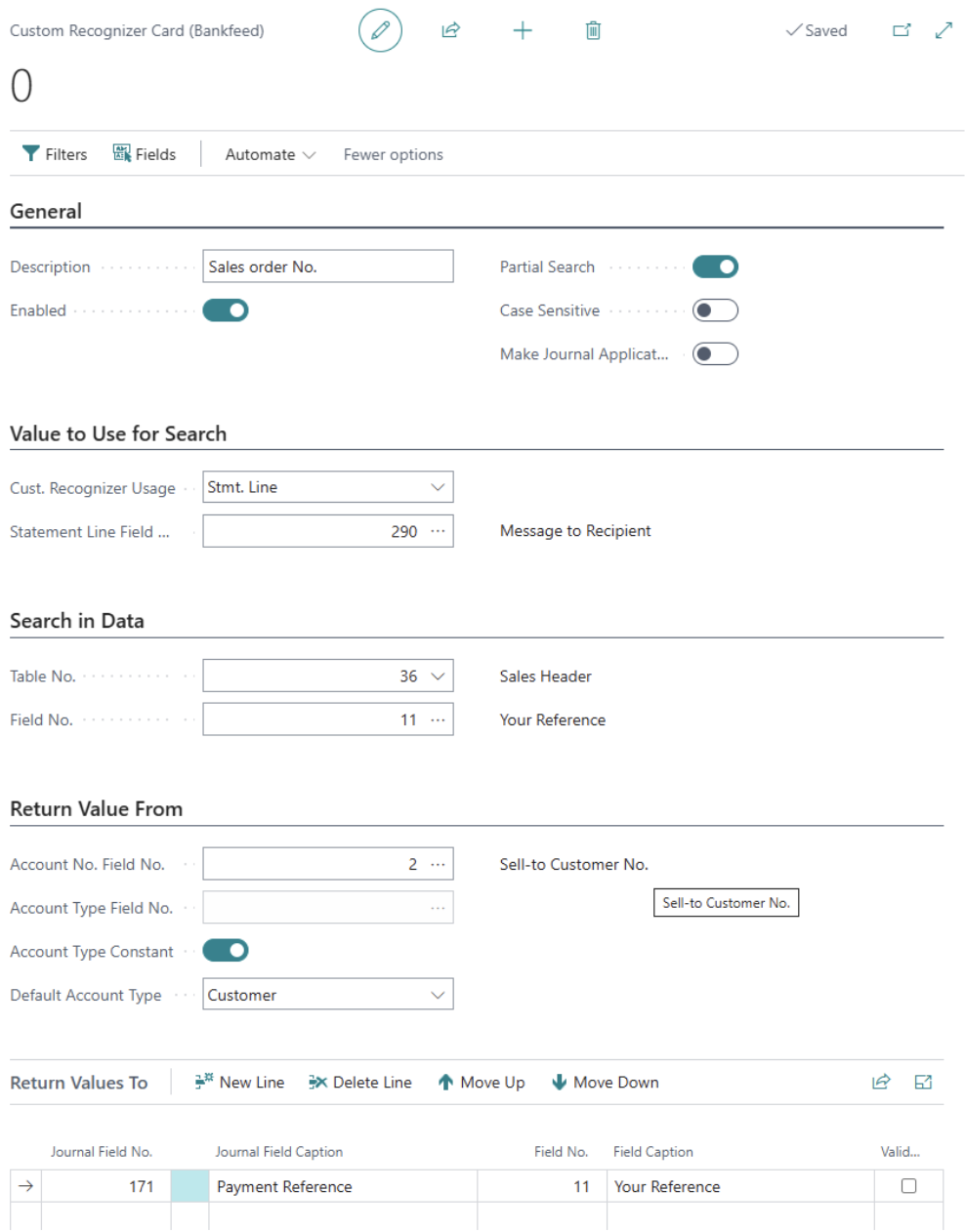
The “Custom Recognizer (Bankfeed)” functionality has been extended to support more advanced recognition scenarios.
In cases where important transaction information is stored in fields such as “Message to Recipient” or other bank transaction fields – and the information is not a standard Document No. or External Document No. – users can now define custom recognition logic.
For example, recognition can be based on:
The setup allows users to define:
For more information, please contact the Bankfeed support team at [email protected] or refer to the Bankfeed user manuals.
TRY FOR FREE

HURRAY!
Feel free to leave your question here and we will email you the answer as soon as possible.
Hello, I found this Dynamics 365 Business Central add-on that would save me tons of time by automatically importing bank statements and matching payments with invoices. It has certain technical requirements like an up-to-date Business Central version and banks that comply with the PSD2 open banking protocol. Could you please check the requirements and let me know if we are able to use the Bankfeed app? The requirements are here: www.bankfeed.com/faq/, or you may contact the add-on’s developers at [email protected].
Bankfeed works as an add-on for Microsoft Dynamics 365 Business Central. Therefore the usage of this ERP system is necessary. The solution works best with the three latest versions of Business Central. Before installing Bankfeed, we recommend checking if the following conditions are met: 1. Open banking API (PSD2) is not occupied. If you use online payment provider services (Wordline, Wordpay, etc.), they might be connected through an open banking API. Therefore, Bankfeed will not be able to connect to this API as it is already occupied. In these situations, we can connect Bankfeed through the bank’s direct API, known as a Gateway. However, it usually requires additional banking fees and additional implementation hours. 2. Banks provide the information required for recognition and reconciliation. Even though open banking is regulated using the PSD2 protocol and is mandatory for all EU banks, the banks treat these requirements differently. The amount of information provided through the APIs and its quality can differ depending on the bank. This can lead to a situation where Bankfeed will not be able to properly identify customers/vendors or documents because of the lack of data. Here is a list of mandatory bank fields needed to enable Bankfeed’s payment recognition and reconciliation. Please check HERE if the banks you are using provide the information from these fields:
Enter your email, and you will immediately receive:
Enter your email, and you will immediately receive:
Enter your information, and you will be contacted regarding a pricing offer that suits your business needs.