
An update has been released, and here is an overview of what was improved in Bankfeed version 28.0
Contact us
Feel free to leave your question here and we will email you the answer as soon as possible.


An update has been released, and here is an overview of what was improved in Bankfeed version 28.0
Check out the features of Bankfeed.
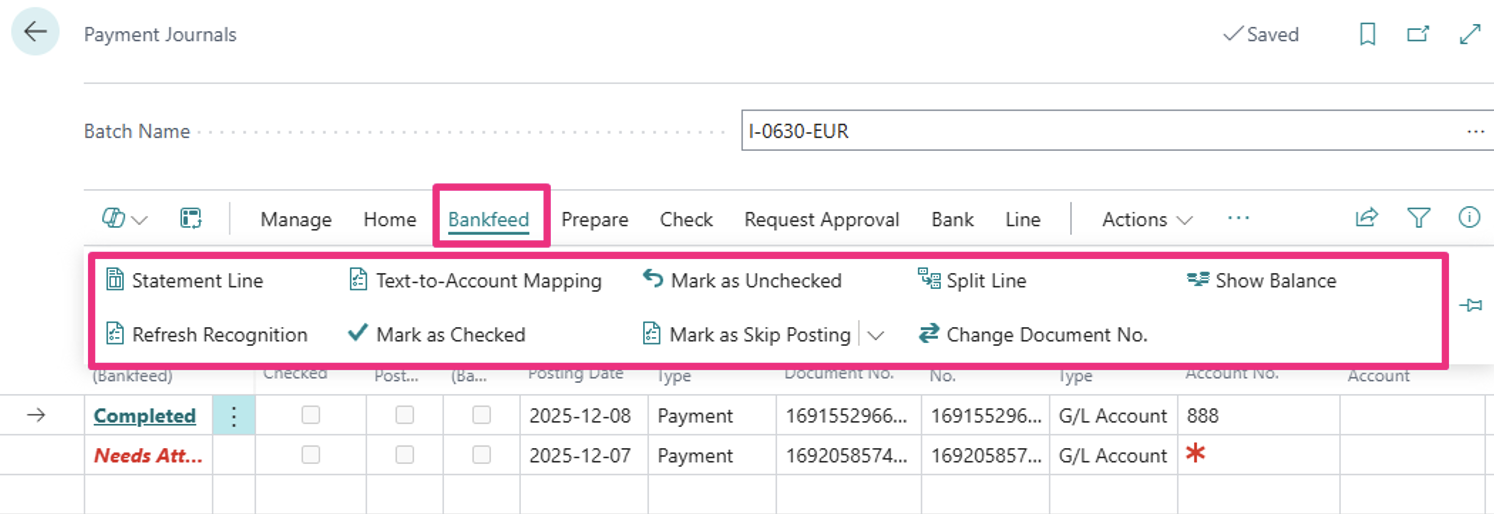
In the Payment and Cash Receipt journals, as well as in the Payment Reconciliation Journal, we have introduced a new action group called “Bankfeed“. This addition makes it easier for users to access all Bankfeed-related functions and pages.
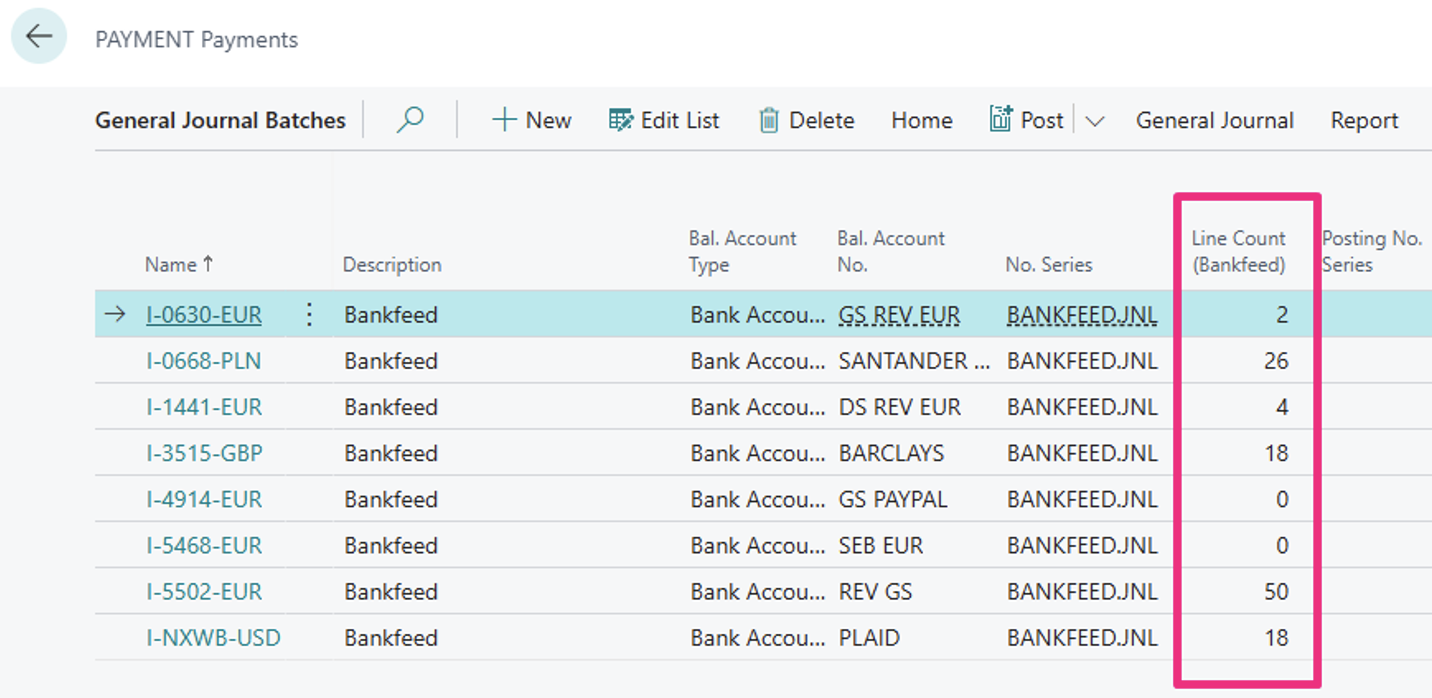
Users with multiple bank accounts often find it difficult to quickly identify which journals contain unposted transactions, as they need to open each journal batch to check for these transactions.
To simplify this process, we have added a “Line Count (Bankfeed)” field that indicates the number of transactions in each journal. This enhancement allows users to easily spot journals with unposted transactions without having to open each one.
In the previous version of Bankfeed, we introduced a new field called “Checked,” which allows users to mark lines as “Checked.” Initially, this field was hidden and could only be added in the Personalization mode. Now, it has been added by default to all Bankfeed journal batches.
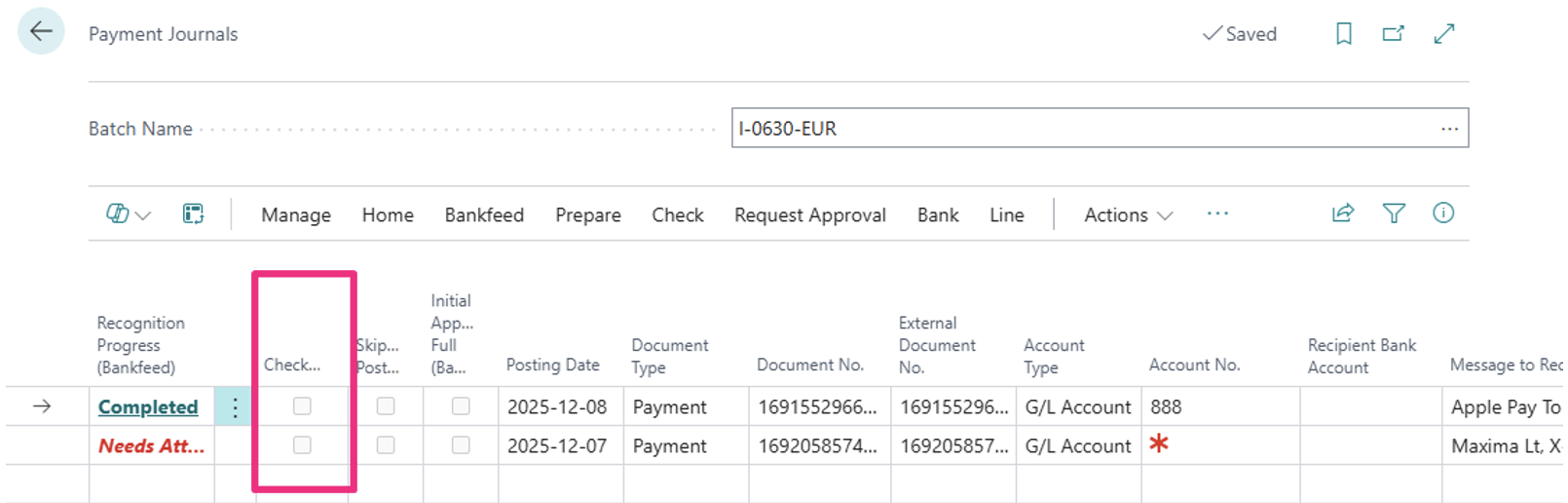
To mark certain lines as “Checked,” click on Bankfeed and select “Mark as Checked“.
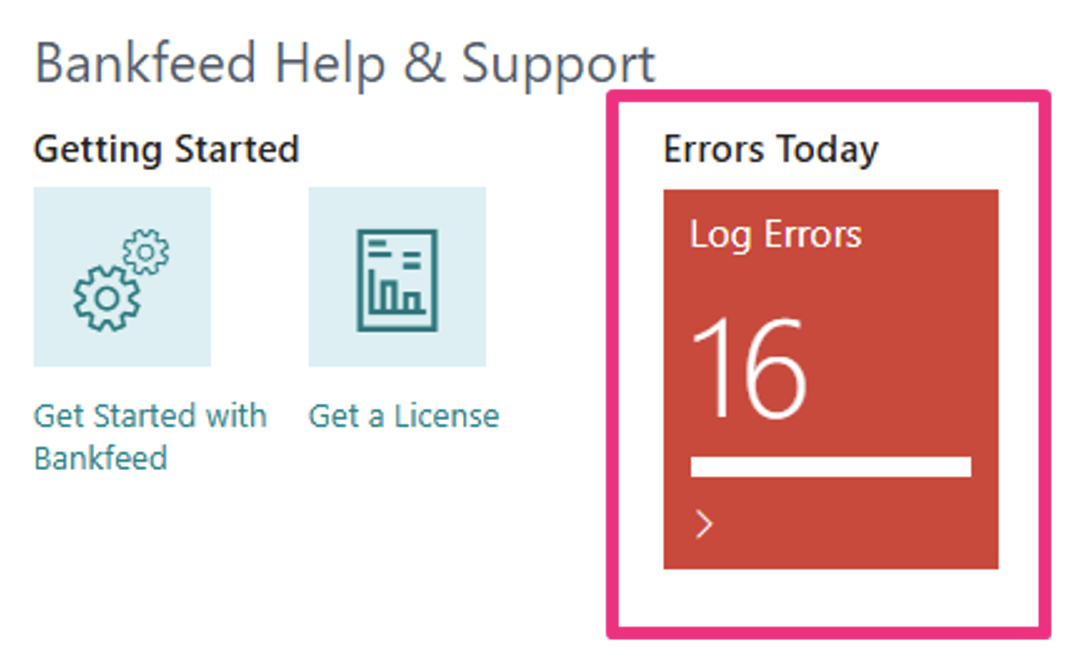
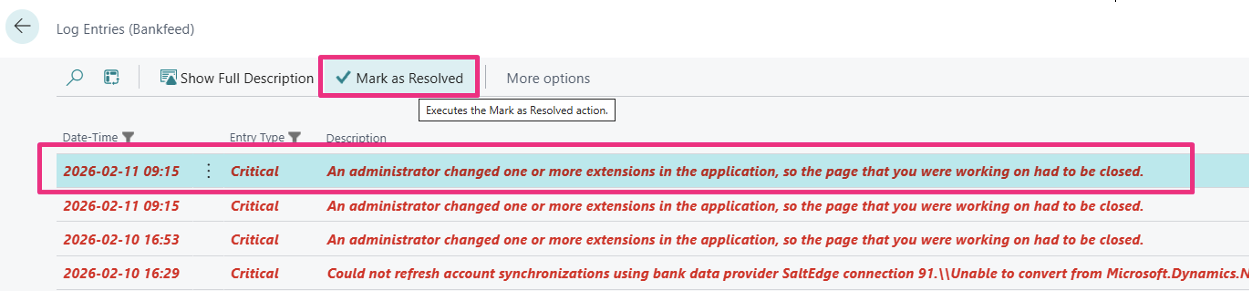
If you notice an error in the “Errors Today” section of the Bankfeed role center, you can click on the error message to review it. Once you have examined the error, you can “Mark as Resolved.” Doing this will reset the count of “Errors Today,” and any errors you have already revised will no longer be displayed.
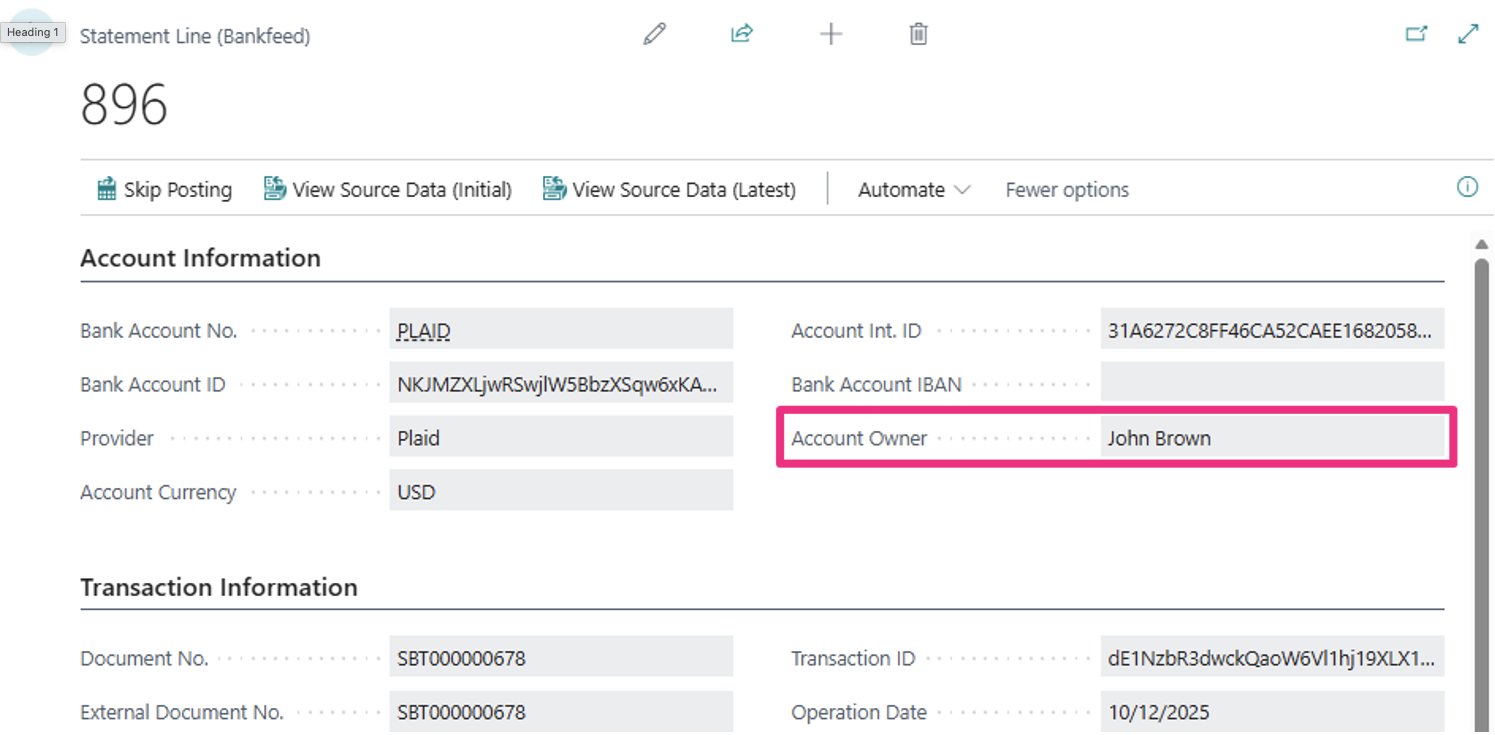
For customers, using the US/CA provider PLAID, with bank accounts that have multiple cards owned by different individuals, it is essential to identify the source of each transaction.
If this information is included in the transaction, it will appear in the Statement Line.
Additionally, “Account Owner” details can be added to the Bank Account Reconciliation page.
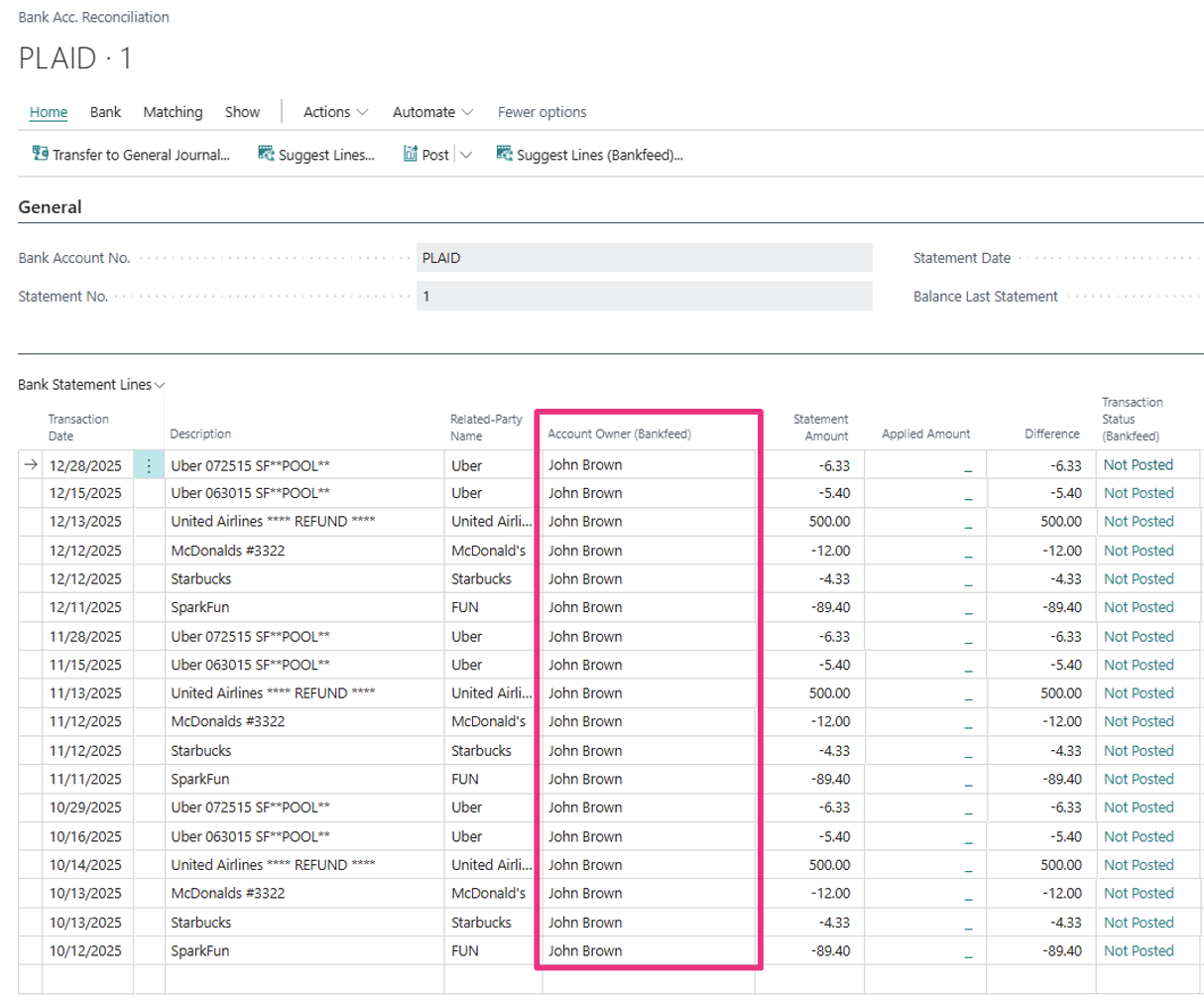
* The column “Account Owner (Bankfeed)” can be added using the Personalization mode.
On the Bank Account Reconciliation page, Bankfeed has a feature called “Suggest Lines (Bankfeed)”. We have introduced the option to exclude Bankfeed transactions that have already been posted and are marked as “Skip Posting.”
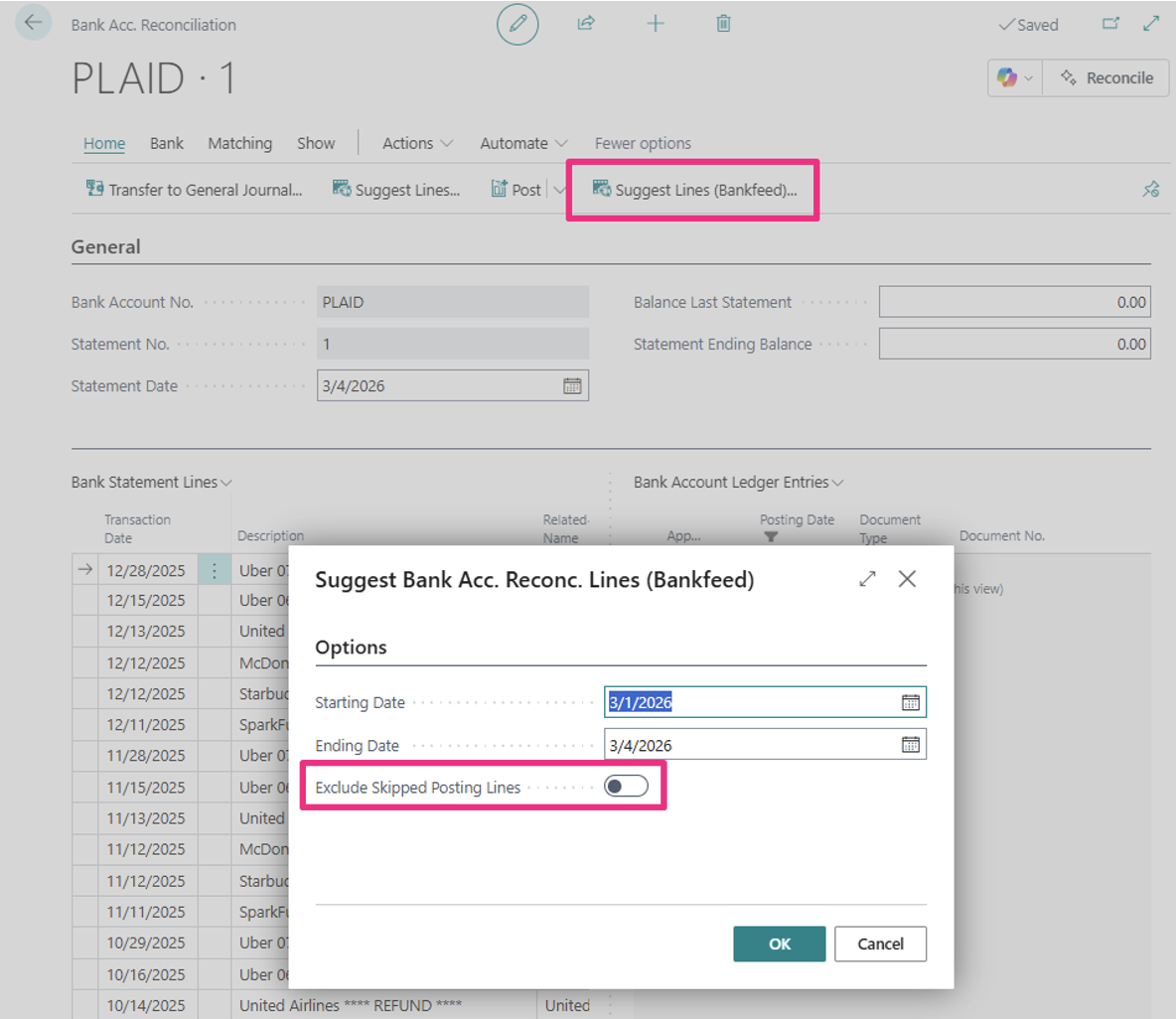
This prevents having duplicate transactions, which are marked as “Skip Posting”.
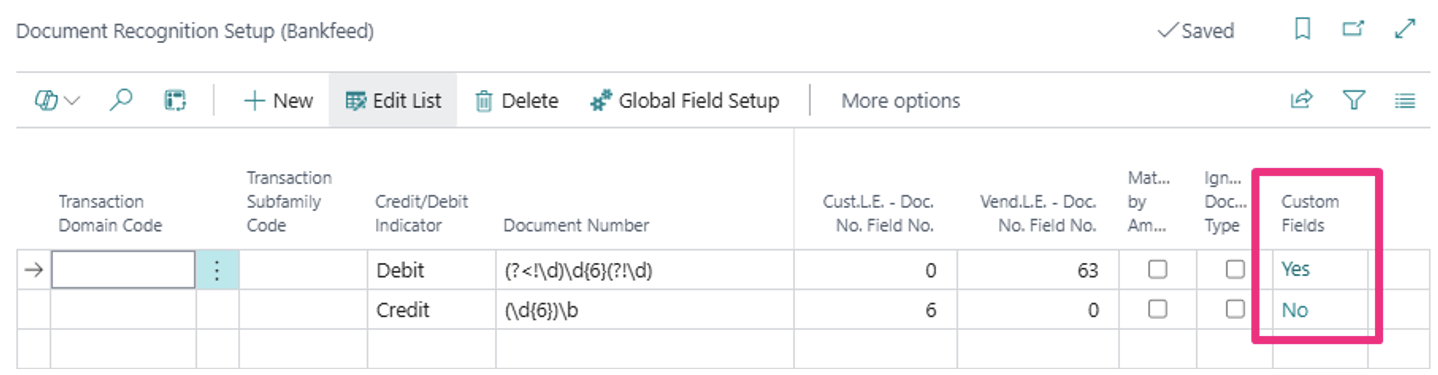
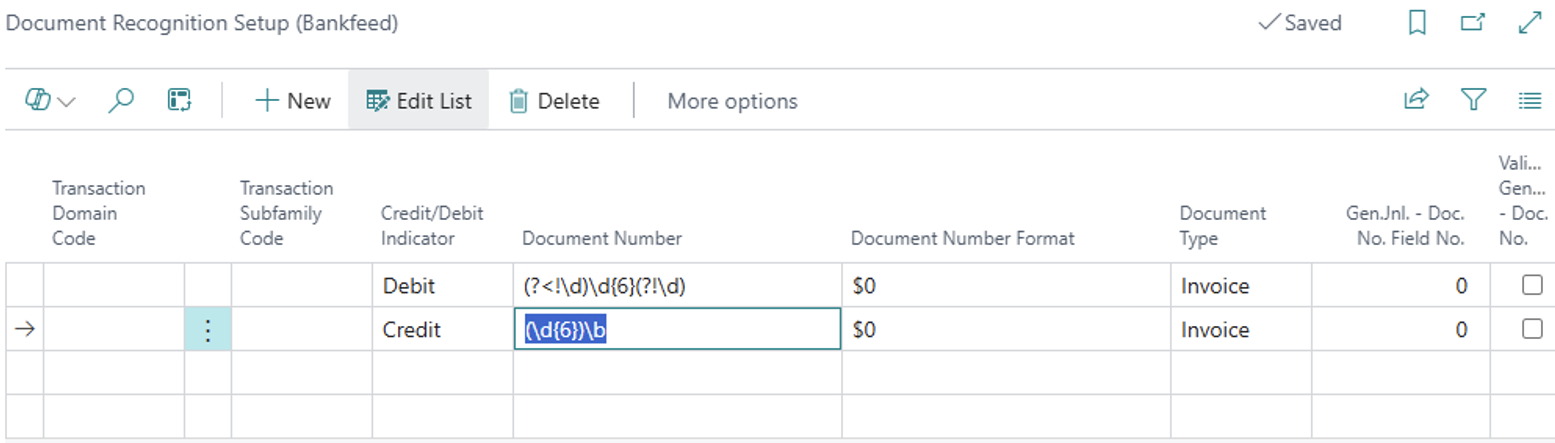
Previously, the Document Recognition Setup was limited to extracting document numbers from a fixed set of fields in Statement Lines. However, we’ve found that document numbers can also appear in other fields, which highlighted a limitation in the functionality. To address this, we are introducing the ability to set up additional Statement Line fields in which Bankfeed will search for document numbers.
Currently, document numbers are extracted from the following fields: “Transaction Text,” “Creditor Reference,” and “End To End ID.” If you have a formula that should extract numbers from other fields, you can add these fields in the “Document Recognition Setup (Bankfeed)” table by clicking on the “Custom Fields” option.
Click “New” or “Edit List” and add a new line with the selected “Field No.”
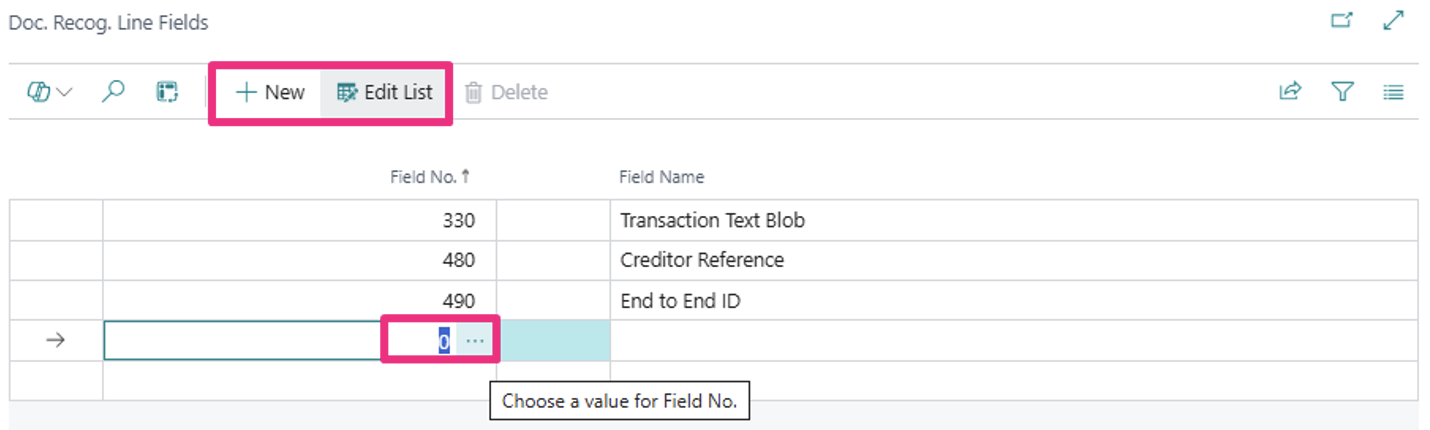
You can also delete some of the predefined lines if needed.
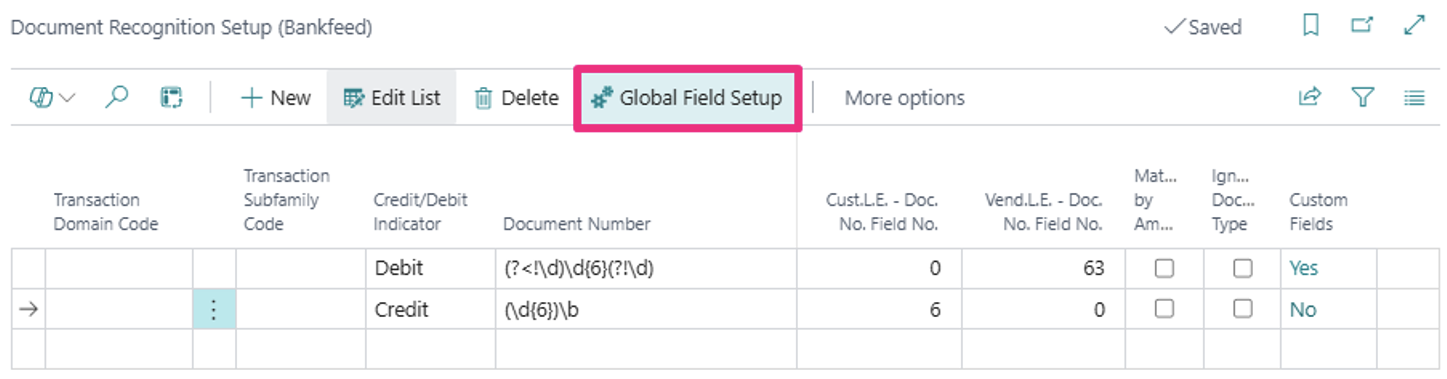
If you want the changes in field selection to be valid for all formulas in the “Document Recognition Setup (Bankfeed),” click “Global Field Setup” and change the fields there.
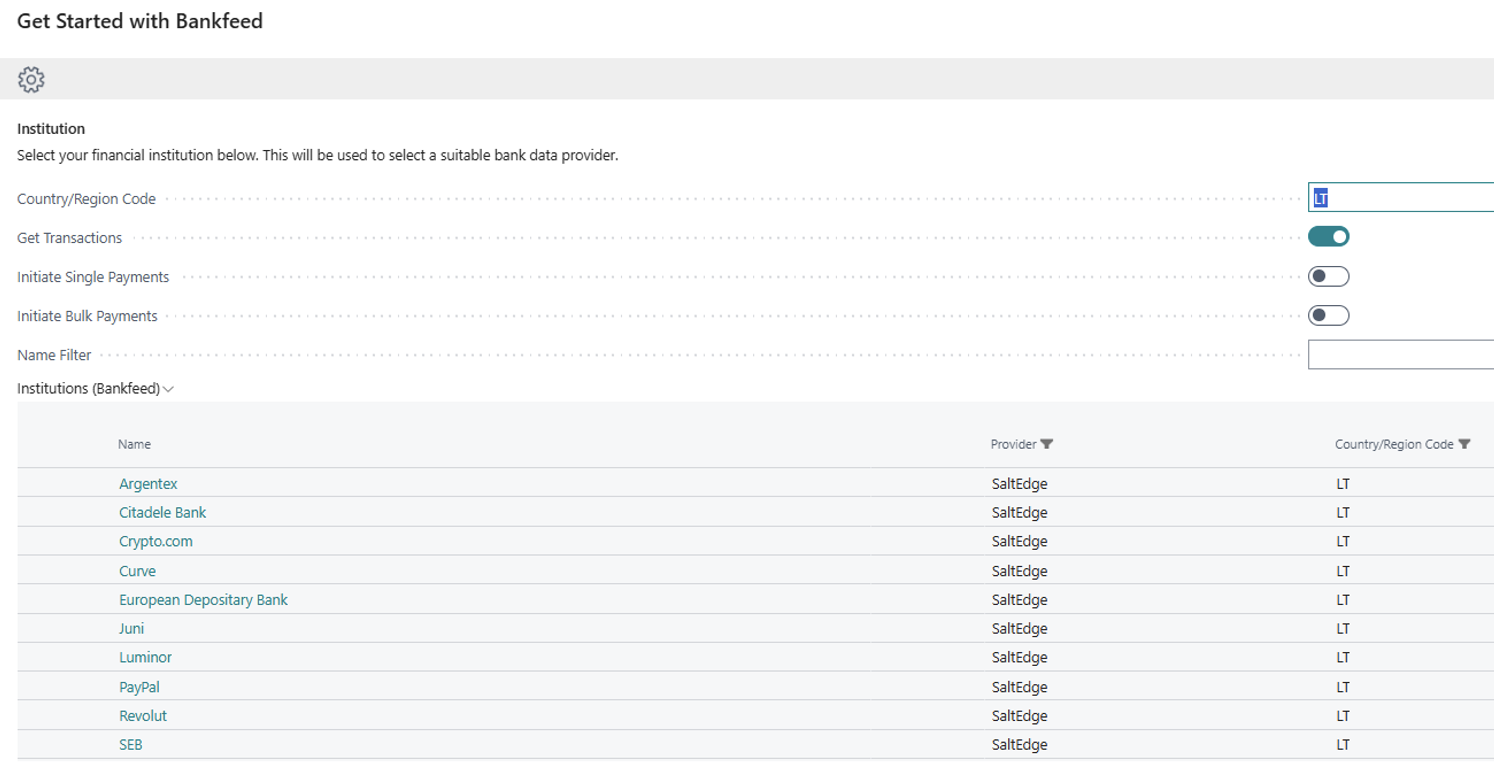
We are excited to announce the activation of a new bank data provider, SaltEdge. Starting with this release, SaltEdge will be available to all Bankfeed users. This addition will help expand the list of supported bank institutions and will allow us to introduce additional useful features in the future.
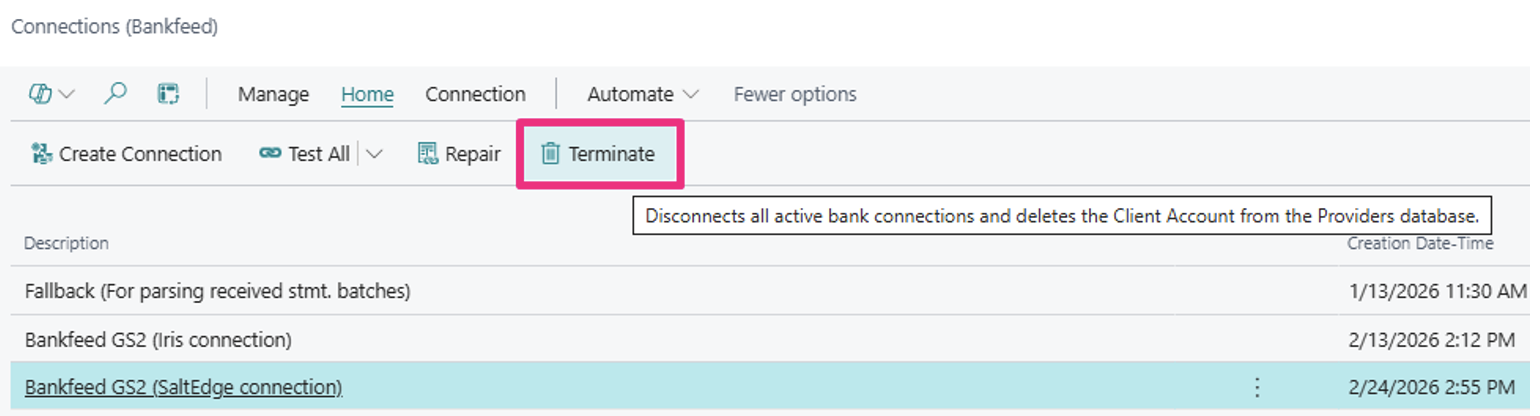
In the previous version of Bankfeed, the „Terminate“ function was used to disconnect certain bank accounts that could not be disconnected using other methods. Going forward, you can use the „Disconnect“ function to disconnect all accounts.
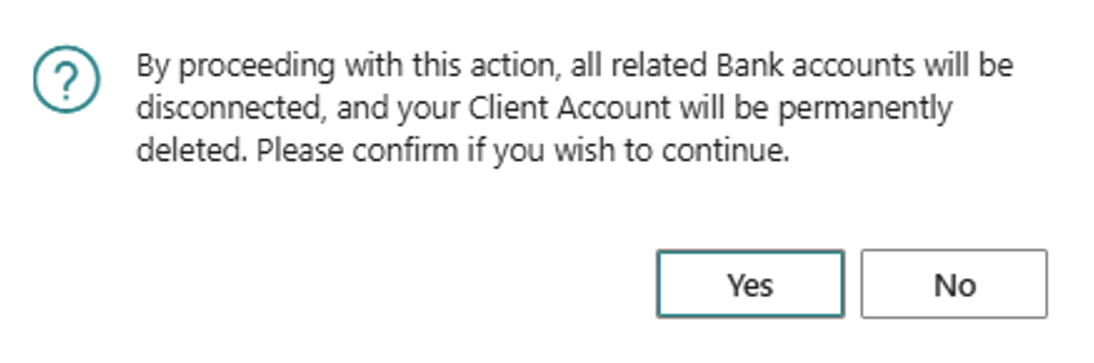
Only use the “Terminate” function if you no longer wish to use Bankfeed in your Business Central or if you want to disconnect from a specific provider. Please note that terminating will disconnect ALL accounts associated with your connection and will also delete your customer account on the provider’s side.
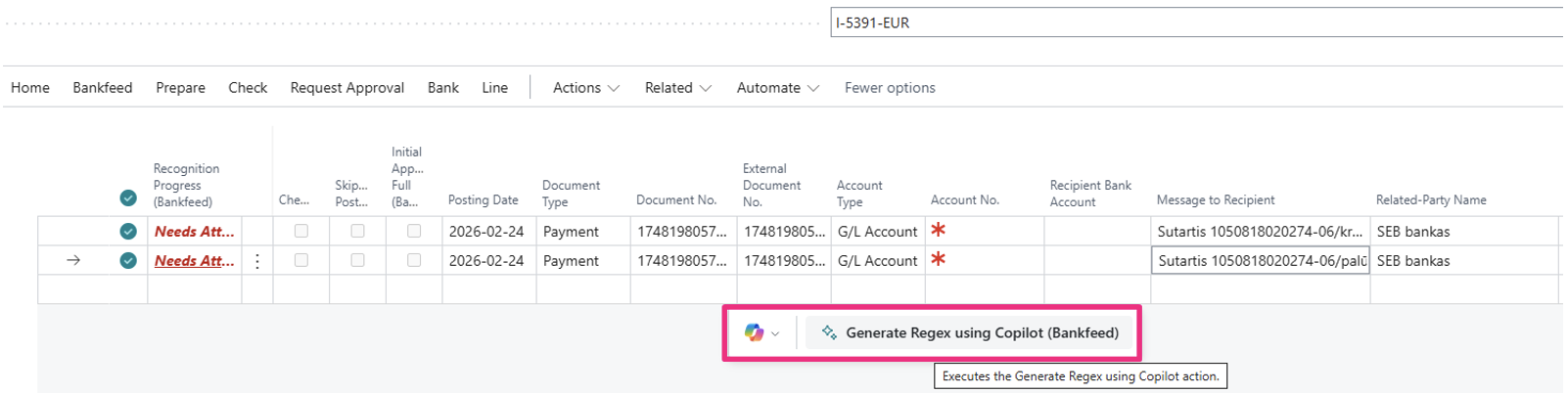
When you use the “Generate Regex using Copilot (Bankfeed)” feature and a formula is created for your sample lines, you have the option to save any of the proposed formulas. To do this, simply select the line with the formula and click the „Keep it” button.
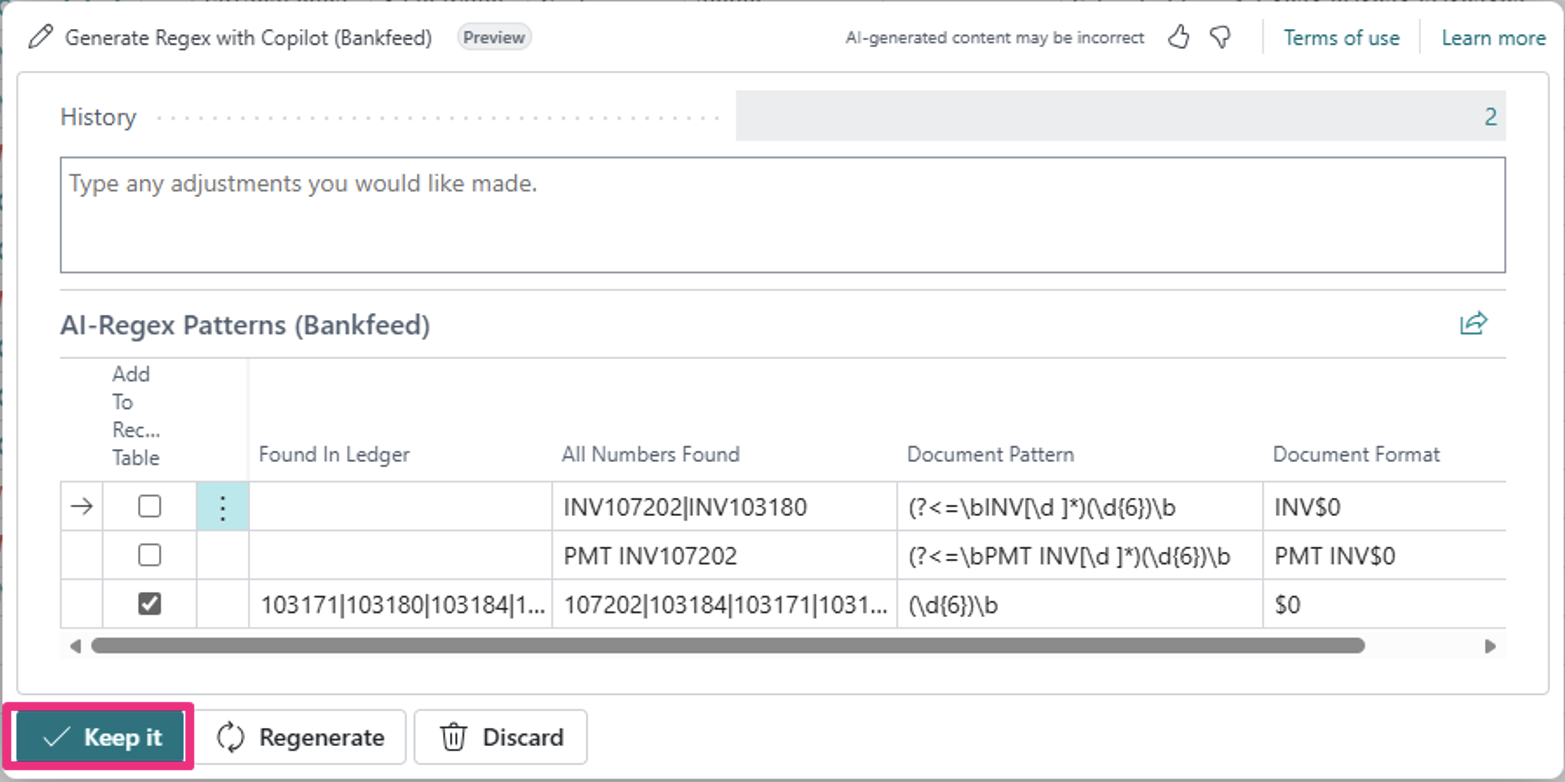
The chosen formula will be added to the “Document Recognition Setup (Bankfeed),” and the setup page will open automatically. Continue by completing the setup.
When selecting the Institution line in the “Get Started with Bankfeed” wizard, additional information about the institution will now be displayed at the bottom.
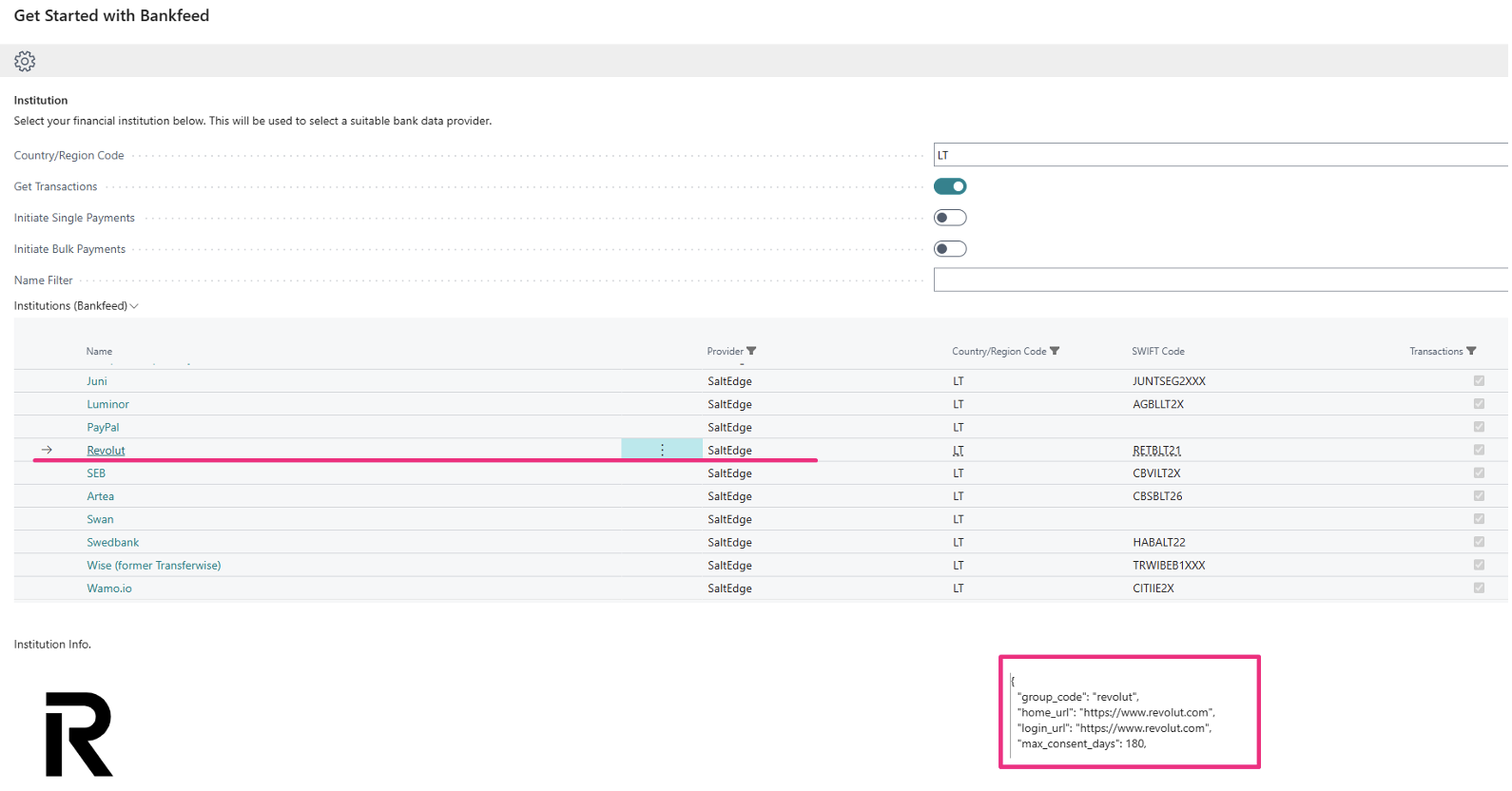

This information can help you understand the types of accounts supported, the consent period, the maximum fetch interval, and more.
TRY FOR FREE

HURRAY!
Feel free to leave your question here and we will email you the answer as soon as possible.
Hello, I found this Dynamics 365 Business Central add-on that would save me tons of time by automatically importing bank statements and matching payments with invoices. It has certain technical requirements like an up-to-date Business Central version and banks that comply with the PSD2 open banking protocol. Could you please check the requirements and let me know if we are able to use the Bankfeed app? The requirements are here: www.bankfeed.com/faq/, or you may contact the add-on’s developers at [email protected].
Bankfeed works as an add-on for Microsoft Dynamics 365 Business Central. Therefore the usage of this ERP system is necessary. The solution works best with the three latest versions of Business Central. Before installing Bankfeed, we recommend checking if the following conditions are met: 1. Open banking API (PSD2) is not occupied. If you use online payment provider services (Wordline, Wordpay, etc.), they might be connected through an open banking API. Therefore, Bankfeed will not be able to connect to this API as it is already occupied. In these situations, we can connect Bankfeed through the bank’s direct API, known as a Gateway. However, it usually requires additional banking fees and additional implementation hours. 2. Banks provide the information required for recognition and reconciliation. Even though open banking is regulated using the PSD2 protocol and is mandatory for all EU banks, the banks treat these requirements differently. The amount of information provided through the APIs and its quality can differ depending on the bank. This can lead to a situation where Bankfeed will not be able to properly identify customers/vendors or documents because of the lack of data. Here is a list of mandatory bank fields needed to enable Bankfeed’s payment recognition and reconciliation. Please check HERE if the banks you are using provide the information from these fields:
Enter your email, and you will immediately receive:
Enter your email, and you will immediately receive:
Enter your information, and you will be contacted regarding a pricing offer that suits your business needs.